# Animated Book Menu

# Release Notes

## Release 1.4.1 (New Version numbering)

### Supported Unreal Engine Verisons

- UE 5.4
- UE 5.3

### Overview

- Change of version numbering
- InteractExt Function added to BookMenuActor
- Performance improvements on AnimInstance
- UE 5.4 compatibility adjustments
- Fix of GetBookMenuData function of BookMenuActor

### BookMenuActor

- InteractExt function added 
    - The Interactxt function additionally offers another Output with th UV Coordinates of the UVBookTrace
- Compatibility adjustments 
    - mainly added include files UE5.4 seems to require now
- GetBookMenuData fix 
    - Fixed a bug that caused that the WidgetInstances on UBookMenuData were still null after GetBookMenuData() on BookMenuActor

### BookMenuComponent

- InteractExt function added 
    - just interfacing the InteractExt of the BookMenuActor

### BookMenuAnimInstance

- Timer Callback added for page rendering to provide an option to improve performance if needed 
    - Developers can now configur the time between two rendercalls of the Widgets
    - The Option is available in the BookMenuData Asset, Property: RedrawTime
    - If 0 every frame will be rendered otherwise the given time in seconds will be used e.g. 0.1 for every 100ms
- Compatibility adjustments 
    - mainly added include files UE5.4 seems to require now

### BookMenuData

- RedrawTime attribute added to control the time between two render calls of the widgets

### BookMenuStatics

- Compatibility adjustments 
    - mainly added include files UE5.4 seems to require now

---

---

## Release 5.3.2 for UE 5.3.2

### Book Menu Actor and Book Menu Component

- Removed LastPageSectionIndex and Last Page Index Properties due to confusion about their purpose
- Get and Set BookMenu Data care now about cloning the data first before using it to avoid wrong runtime manipulation of data
- Set Book Menu Data now initializes the Book Menu Actor and Anim INstance correctly

### Book Menu Interaction Actor

- Added additional Widget Components to fix stalling UI animations during page turn or if not focused
- Removed GetPageWidgetComponnt Function because it is obolete now

### Book Menu Anim Instance

- refactoring of page rendering

### Page Section Data Struct

- Widget Instances made readonly because the properties are only used at runtime internally
- Added some helper functions for rendering
- Removed Last Page Section Index and Last Page Index due to confusion about their usage
- SetInteractionActor Function added

### Book Menu Statics

- MenuDataRuntimeInstance added to clone Book Menu Data before runtime manipulation

---

---

## Release5.3.1 for UE 5.3.2

### Book Menu Actor

- Added Get Function for Property BookMenuData; GetBookMenuData
- Added functions RegisterInteractionComponent and RegisterInteractionActor
- Exposed the following Properties via respective Get Functions
    
    
    - GetCurrentPageSectionIndex
    - GetLastPageSectionIndex
    - GetPendingPageSectionIndex
    - GetCurrentPageIndex
    - GetLastPageIndex
    - GetBookIsOpen
    - GetBookShouldOpen
    - GetBookShouldClose
    - GetPageSections
- Added Keyboard Focus features and Gamepad Support
    
    
    - SetKeyboardFocus

### Book Menu Component

- Exposed the following Properties via respective Get Functions
    
    
    - GetCurrentPageSectionIndex
    - GetLastPageSectionIndex
    - GetPendingPageSectionIndex
    - GetCurrentPageIndex
    - GetLastPageIndex
    - GetBookIsOpen
    - GetBookShouldOpen
    - GetBookShouldClose
    - GetPageSections
- Added Keyboard Focus features and Gamepad Support
    
    
    - SetKeyboardFocus

### BookMenuInteractionActor

- ArrowComponent added (PointerZero)

### Book Menu Statics

- ResetWidgetInteractionPointer

### Assets

- Updated Master Materials
- Folder structure in textures reorganized
- AnimMontage moved to own Folder
- Updated UV Layouts

# Introduction

Introducing the Fully Animated and Ready-to-Use Skeletal Book Mesh Plugin, designed for those who want to elevate their 3D widget experience with an interactive, animated book interface.   
This plugin allows you to render UMG User Widgets onto curved, animated book pages, making it perfect for creating immersive and engaging UI elements.

With this plugin, you can easily render custom User Widgets on the book's pages, bringing a dynamic and captivating interface to your project. The UV-based line trace interaction ensures precise input handling.

The book's functionality is fully exposed to blueprints, allowing you to control book animations and implement custom behaviors with ease.  
All rendering features as well as the animation logic, are encapsulated within the Animation Instance Class, simplifying the integration and management of the book's visual elements.

The BookMenuData asset type streamlines the creation of multiple books with different covers and contents.  
This data-driven approach allows you to quickly define books in the editor, speeding up the development process.

![BookMenuPlugin](https://docs.suricoon.com/uploads/images/gallery/2024-07/scaled-1680-/image-1721552288322.png)## Main Features of the Plugin

- Fully anminated and ready-to-use Skeletal Book Mesh
- Control Animations through simple functions like: `Open Book` , `Close Book`, `Jump to Page` (turning the pages)
- Render targets to display interactable custom User Widgets on the Skeletal Book Mesh pages
- Interact with the Book Pages by simply calling the `Interact` function. The interact function will perform the `Line Tracing` and Widget Pointer handling for you.
- Send input to the widgets through the UE5 build in `Widget Interaction Component`. No plugin specific magice here.

## Installation and Setup

If you want to have a detailed description about the following steps, please refer to: [Getting Started](https://docs.suricoon.com/books/animated-book-menu/chapter/getting-started)

- Install the Plugin for the UE5 Version you are using. You can do so by going to the `Epic Games Launcher > Unreal Engine > Library > Vault > search for animated book menu`
- If the Plugin does not show up in your Vault, you might need to purchase it first from the [Marketplace](https://www.unrealengine.com/marketplace/en-US/product/animated-book-menu?sessionInvalidated=true)
- Create a new Project or open an existing one
- Open Plugin Settings and enable the Plugin `Animated Book Menu`
- **Very important**: Open Project Settings and enable the option `Support UV From Hit Results`
- Restart the Editor

## Plugin Structure

![drawing](https://docs.suricoon.com/uploads/images/gallery/2024-07/scaled-1680-/image-1721551880268.png)#### C++ Classes

The plugin consists of two modules: a runtime module and an editor module.  
The editor module, though currently basic, adds a new asset type called BookMenuActorData to the editor context menu.  
This feature allows you to easily define and manage book menu data within the editor.

The runtime module provides the essential base classes for the plugin.  
Most users won't need to interact with the C++ code, as the plugin's functionality is designed to be accessible through Blueprints.

#### Contents

In the content folder, you will find a variety of assets essential for creating interactive book menus:\\

- **Animations and Meshes:** Ready-to-use assets for the book's animated movements and structure.
- **Blueprints for Book Menu Logic:** Pre-built Blueprints that you can copy and modify, or use as a base to derive your own custom Blueprints.
- **Base and Example Widgets:** Templates to help you design and create your own interactive book menu pages.
- **Textures and Materials:** Visual assets for customizing the appearance of your book menus.
- **Example Book Menu Configuration Data:** Sample data configurations to help you get started quickly and understand the setup process.

# Quick Start

<iframe allow="accelerometer; autoplay; clipboard-write; encrypted-media; gyroscope; picture-in-picture; web-share" allowfullscreen="" frameborder="0" id="bkmrk-" referrerpolicy="strict-origin-when-cross-origin" src="https://www.youtube.com/embed/IfoUWlOBHkM?si=pvn02X6R6bJHfvxY" title="YouTube video player"></iframe>

[AnimatedBookMenu\_ExampleProjects.zip](https://docs.suricoon.com/attachments/2)

## Prerequisites

- Make sure the correct version of Unreal Engine is installed (UE 5.3+)
- Make sure you have purchased the Plugin from the [Marketplace](https://www.unrealengine.com/marketplace/en-US/product/animated-book-menu) and installed it to the Engine

## Create a new Project

**Open Unreal Engine Launcher and launch Unreal Engine (5.3+)**

---

[![image.png](https://docs.suricoon.com/uploads/images/gallery/2024-01/scaled-1680-/image.png)](https://docs.suricoon.com/uploads/images/gallery/2024-01/image.png)

**Create a new Project**

---

[![image.png](https://docs.suricoon.com/uploads/images/gallery/2024-01/scaled-1680-/2oJimage.png)](https://docs.suricoon.com/uploads/images/gallery/2024-01/2oJimage.png)

1. Select Blank Project
2. Select Blueprint with Target Platform Windows, Quality Preset Maximum and leave Starter Content and Raytracing unchecked
3. Name the Project GettingStarted
4. Click on Create

**Project Settings**

---

- Once the project has loaded, go to `Settings > Project Settings`
- In the Search bar type: Support UV From Hit Results
- Enable the setting `Optimization > Support UV From Hit Result`

[![image.png](https://docs.suricoon.com/uploads/images/gallery/2024-01/scaled-1680-/wKRimage.png)](https://docs.suricoon.com/uploads/images/gallery/2024-01/wKRimage.png)

> ***NOTE:*** If being asked to restart, ignore it, we will restart the editor after the next step

**Enable Plugin**

---

- Navigate to `Edit > Plugins`
- In the category "Advanced Gameplay" enable the Animated Book Menu Plugin
- You can also search for "Book" in the search bar and then enable it

[![image.png](https://docs.suricoon.com/uploads/images/gallery/2024-01/scaled-1680-/fylimage.png)](https://docs.suricoon.com/uploads/images/gallery/2024-01/fylimage.png)

> ***NOTE:*** If being asked to restart the editor, confirm with Restart Now

[![image.png](https://docs.suricoon.com/uploads/images/gallery/2024-01/scaled-1680-/DDmimage.png)](https://docs.suricoon.com/uploads/images/gallery/2024-01/DDmimage.png)

## Prepare some Content

**Folder Setup**

---

- In the Content Browser under Content, create a new Folder with the name "BookMenu" and navigate to it.

[![image.png](https://docs.suricoon.com/uploads/images/gallery/2024-01/VSUimage.png)](https://docs.suricoon.com/uploads/images/gallery/2024-01/VSUimage.png)

**Copy some initial files from the Plugins Content Folder**

---

- In the Content Browser under Settings, make sure the Show Plugin Content option is checked

[![image.png](https://docs.suricoon.com/uploads/images/gallery/2024-01/jyIimage.png)](https://docs.suricoon.com/uploads/images/gallery/2024-01/jyIimage.png)

- Then navigate to the Content Folder of the Plugin, with the name Animated Book Menu Content

[![image.png](https://docs.suricoon.com/uploads/images/gallery/2024-01/qJjimage.png)](https://docs.suricoon.com/uploads/images/gallery/2024-01/qJjimage.png)

- Copy the following files from the Plugin Content folder to the BookMenu folder:

<table id="bkmrk-from-to-%2Fbookmenu%2Fbl"><thead><tr><th>From</th><th>To</th></tr></thead><tbody><tr><td>/BookMenu/Blueprints/BookMenuActor\_BP</td><td>/Game/BookMenu/MyBookMenuActor\_BP</td></tr><tr><td>/BookMenu/BookData/Example\_Book\_Menu\_Data</td><td>/Game/BookMenu/MyBookData</td></tr></tbody></table>

## Basic Player Pawn Setup

**Create Player Pawn Blueprnt Class**

---

- Create a new Blueprint Class and select Pawn and name it PlayerPawn\_BP

[![image.png](https://docs.suricoon.com/uploads/images/gallery/2024-01/8Dgimage.png)](https://docs.suricoon.com/uploads/images/gallery/2024-01/8Dgimage.png)

**Add the Book Menu Component to the Player Pawn**

---

- Open the PlayerPawn\_BP Blueprint and under Components, add the following Components to the DefaultSceneRoot 
    - Camera 
        - BookMenu

[![image.png](https://docs.suricoon.com/uploads/images/gallery/2024-01/CuQimage.png)](https://docs.suricoon.com/uploads/images/gallery/2024-01/CuQimage.png)

**Configure the Book Menu Component**

---

- Select the BookMenu Component from the Component List

[![image.png](https://docs.suricoon.com/uploads/images/gallery/2024-01/fYMimage.png)](https://docs.suricoon.com/uploads/images/gallery/2024-01/fYMimage.png)

- and under Details-&gt;BookMenu set the following settings:

[![image.png](https://docs.suricoon.com/uploads/images/gallery/2024-01/zSnimage.png)](https://docs.suricoon.com/uploads/images/gallery/2024-01/zSnimage.png)

- While the two options are the copied assets from the previous Step.

**Add some Begin Play Logic**

---

- Add the following Blueprint nodes to the Begin Play event

<iframe allowfullscreen="allowfullscreen" id="bkmrk--22" scrolling="no" src="https://blueprintue.com/render/99yybgi5/" style="width: 100%; height: 500px;"></iframe>

- This sets the Input node to Game and UI and shows the mouse cursor.

## Map Setup

**Save the Map and set it as the Editor default map**

---

Because we used the Blank Project Template, the editor will give us the default map at startup, which we have to save first. Click on `File > Save All`  
When being asked where to save the map, choose `/BookMenu/Map.umap`  
Then goto `Settings > Projects Settings > Maps & Modes`

[![image.png](https://docs.suricoon.com/uploads/images/gallery/2024-02/image.png)](https://docs.suricoon.com/uploads/images/gallery/2024-02/image.png)

Set Editor Startup Map and Game Default Map to the Map we have saved previously.

**Place Player Pawn on Map**

Drag and Dop the PlayerPawn\_BP Blueprint onto the map and adjust its position to something like that:

[![image.png](https://docs.suricoon.com/uploads/images/gallery/2024-02/Au4image.png)](https://docs.suricoon.com/uploads/images/gallery/2024-02/Au4image.png)

Select the recently placed `PlayerPawn_BP` Actor and navigate to the Details Panel.  
Under `Auto Poses Player`, select `Player 0`  
It is important to also delete the Player Start Object from the Map

[![image.png](https://docs.suricoon.com/uploads/images/gallery/2024-02/51mimage.png)](https://docs.suricoon.com/uploads/images/gallery/2024-02/51mimage.png)

Hit play, you should see something like this:

[![image.png](https://docs.suricoon.com/uploads/images/gallery/2024-02/JD3image.png)](https://docs.suricoon.com/uploads/images/gallery/2024-02/JD3image.png)

Just the Book lying open without any page turn or interaction.  
That's what we will add next.

## Automatic page turn logic

**Adjust the Book Menu Data Config**

---

Open the `MyBookData asset` (the one we copied earlier from the plugins content folder)  
Uncheck `Book Begins Play Open` and set the `Start Page Section` to 0  
As we remember from the previous play test, the book started in an open state. That was because those options were set.  
Save the asset and run the game again by hitting Play.  
You should now see that the book starts in an closed state and simply does nothing else.

[![image.png](https://docs.suricoon.com/uploads/images/gallery/2024-02/hLYimage.png)](https://docs.suricoon.com/uploads/images/gallery/2024-02/hLYimage.png)

**Adjustments of the Book Menu Actor**

---

Open the `MyBookMenuActor_BP` Blueprint (the one we copied earlier from the plugins content folder) `OnBeginPlay` we want open the Book and set some timers to automatically turn the pages after 5 and back again after 10 seconds.

> ***NOTE:*** Because Begin Play is also exactly the moment where the whole initialization of the book, the rendering and the Anim instance happens, we should not call any book controls on begin play. But there is a solution by adding a one frame delay

Add the following Blueprint Nodes to Begin Play of MyBookMenuActor\_BP

<iframe allowfullscreen="allowfullscreen" id="bkmrk--31" scrolling="no" src="https://blueprintue.com/render/yx8ovmpk/" style="width: 100%; height: 300px;"></iframe>

The Delay Until Next Tick must be called before any book control functions on Begin Play. Otherwise the initialization and the control calls collide with each other.  
If you hit Play you should see an opening book animation ending like this:

[![image.png](https://docs.suricoon.com/uploads/images/gallery/2024-02/JHjimage.png)](https://docs.suricoon.com/uploads/images/gallery/2024-02/JHjimage.png)

Now let's add some automatic page turning. Add the following Blueprint Nodes to the output of "Open Book At"

<iframe allowfullscreen="allowfullscreen" id="bkmrk--33" scrolling="no" src="https://blueprintue.com/render/0os6i1u3/" style="width: 100%; height: 500px;"></iframe>

This will open the book. After 5 seconds the book will perform a forward page turn because the new Page Section we are jumping to is greater than the current one.  
After 10 seconds the book will perform a reverse Page Turn because the Page Section we are jumping to is smaller than the current one.  
Hit play to see the animation sequence we just created.

## Adding book interactions

Last but not least, let's make the pages interactive. We want to create an interactive mouse which enables us to hover over the buttons and also to click on the buttons of the pages.

**Add Book Menu Interaction Component to the Player Pawn**

---

Open the `PlayerPawn_BP` Blueprint.  
Add a `BookMenuInteractionCopmponent` to the `DefaultSceneRoot` of the Actor

[![image.png](https://docs.suricoon.com/uploads/images/gallery/2024-02/VfLimage.png)](https://docs.suricoon.com/uploads/images/gallery/2024-02/VfLimage.png)

[![image.png](https://docs.suricoon.com/uploads/images/gallery/2024-02/5ZCimage.png)](https://docs.suricoon.com/uploads/images/gallery/2024-02/5ZCimage.png)

Select the `BookMenuInteraction` Component and set the `BookMenuInteractionActor_BP` as the value under  
`BookMenu > BookMenuInteractionActorClass`

[![image.png](https://docs.suricoon.com/uploads/images/gallery/2024-02/oMpimage.png)](https://docs.suricoon.com/uploads/images/gallery/2024-02/oMpimage.png)

**Extend Begin Play on the Player Pawn**

---

On the Begin Play Node add the "Register Interaction Component" Node after Set Show Mouse Cursor:

<iframe allowfullscreen="allowfullscreen" id="bkmrk--39" scrolling="no" src="https://blueprintue.com/render/uyeq_uk-/" style="width: 100%; height: 700px;"></iframe>

This registers the newly added BookMenuInteraction Component inside the Book Menu Actor

**Create regular mouse traces**

In order to interact with the pages of the book we want to create traces starting starting from the mouse cursor on the screen into the game world.  
For this purpose the Book Menu Statics Library offers a node called `Create Mouse Trace Parameters`.  
Those parameters can be used to try an interaction on the Book Menu Actor.  
Add the following nodes to the Event Tick of the PlayerPawn\_BP:

<iframe allowfullscreen="allowfullscreen" id="bkmrk--40" scrolling="no" src="https://blueprintue.com/render/j1-pqr6f/" style="width: 100%; height: 400px;"></iframe>

This creates the mouse trace parameters with an trace distance of 500 units and passes the start and end locations for the actual trace into the interact method of the Book Menu Actor  
If you enable `Debug Trace` you will later see how the traces are performed by drawn lines inside the viewport.  
Apropos viewport, let's switch to the viewport of the book menu actor and position the book menu interaction component in a way so that we can see what it is actually doing.  
In the viewport move the BookMenuInteraction Component to the position `X:120` `Y:0` and `Z:60`  
This will place the `BookMenuInteraction` Component so that we can see it in game.  
Like this in the background:

[![image.png](https://docs.suricoon.com/uploads/images/gallery/2024-02/MEwimage.png)](https://docs.suricoon.com/uploads/images/gallery/2024-02/MEwimage.png)

> ***NOTE:*** Usually you don't want to have the Book Menu Interaction Component on screen. Therefore it makes sense to move it behind the camera and for multiplyaer games not to replicate the component at all.

Lets move the Book Menu Interaction Component behind the Camera to position `X: -120` `Y:0` `Z:0`  
Hit play and hover the Buttons. You should see them lighting up. But you can't click them yet. Thats what we are doing next.

**Adding Input to the Book Menu Interaction Actor**

---

Somewhere inside the event graph of PlayerPawn\_BP add the following nodes:

<iframe allowfullscreen="allowfullscreen" id="bkmrk--43" scrolling="no" src="https://blueprintue.com/render/sdbp1iyr/" style="width: 100%; height: 400px;"></iframe>

This gets the Widget Interaction Component from the Book Menu Interaction Component. We can use this Widget Interaction Component like any normal Widget Interaction Component (see: Unreal Engine Documentation ) Which means we can do a lot of stuff with it. In our example we implement a pointer key press and release.  
Hit play and you will be able to hoer and click the buttons.  
That's the getting started Have fun and have a look onto my [Youtube Channel](https://www.youtube.com/@suricoon) for more tutorial, which will be added from time to time!

# Book Menu Data


# Book Menu Editor - Book Menu Data

Book Menu Data Assets can be easily created within the Content Browser.  
Rightclick on any free space within the content browser and select

Book Menu -&gt; Book Menu Dta

[![image.png](https://docs.suricoon.com/uploads/images/gallery/2024-02/scaled-1680-/L6nimage.png)](https://docs.suricoon.com/uploads/images/gallery/2024-02/L6nimage.png)

[![image.png](https://docs.suricoon.com/uploads/images/gallery/2024-02/scaled-1680-/Yj8image.png)](https://docs.suricoon.com/uploads/images/gallery/2024-02/Yj8image.png)

Currently the Book Menu Data Editor is a very simple properties editor. You can adjust any value here:

[![image.png](https://docs.suricoon.com/uploads/images/gallery/2024-02/scaled-1680-/RKMimage.png)](https://docs.suricoon.com/uploads/images/gallery/2024-02/RKMimage.png)

# Set Book Menu Data and Page Sections (Design Time and Run Time)

### Set Book Menu Data at design time

The Book Menu Data normally should be set at design time. At least a possible default value.  
It can be set either on the Book Menu Component or the Book Menu Actor directly

#### Book Menu Component

<span style="text-decoration: underline;">**Option 1:**</span>

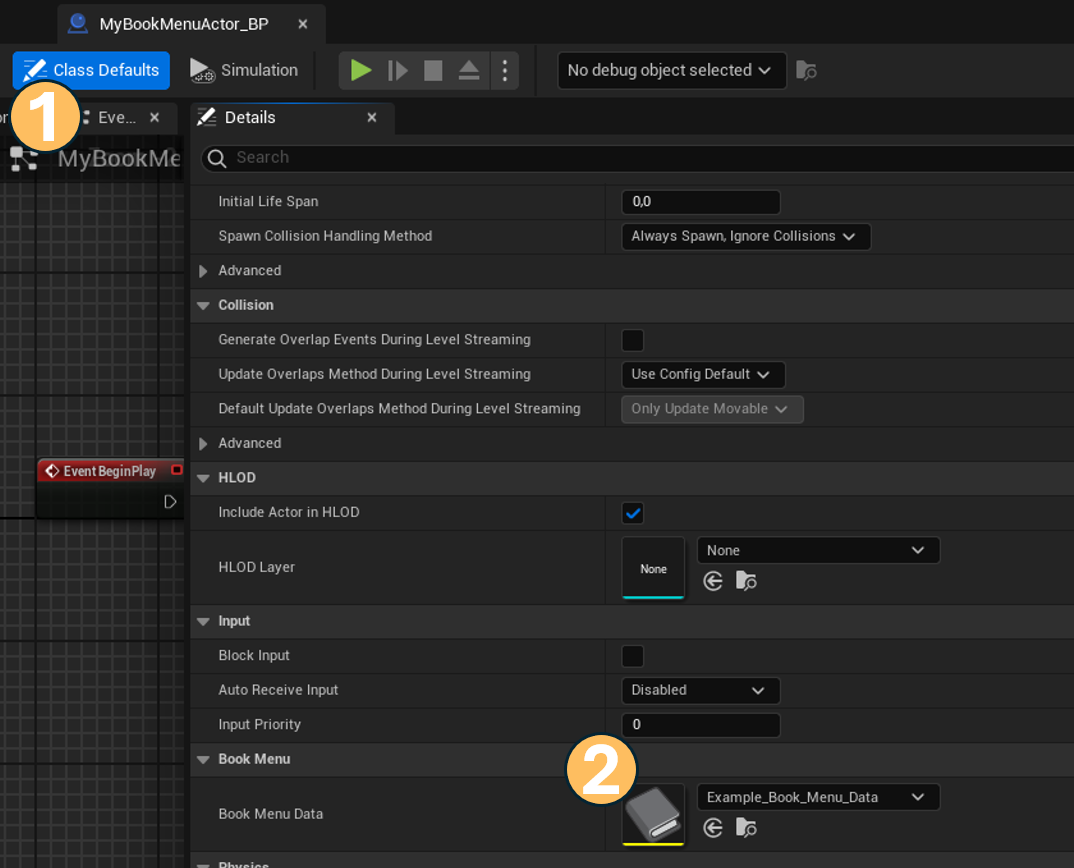
Set the Book Menu Data on the Class Default value inside any actor that instantiates the Book Menu Component

[![image.png](https://docs.suricoon.com/uploads/images/gallery/2024-03/scaled-1680-/ojwimage.png)](https://docs.suricoon.com/uploads/images/gallery/2024-03/ojwimage.png)

<span style="text-decoration: underline;">**Option 2:**</span>

Another way is to set the Book Menu Data on an actor that instantiates the Book Menu Component inside the 3D Viewport.

[![image.png](https://docs.suricoon.com/uploads/images/gallery/2024-03/scaled-1680-/ZXWimage.png)](https://docs.suricoon.com/uploads/images/gallery/2024-03/ZXWimage.png)

#### Book Menu Actor

<span style="text-decoration: underline;">**Option 1:**</span>

Set the Book Menu Data on the Class Default value inside the Book Menu Actor.

<p class="callout warning">This only works if the Book Menu Actor gets used directly e.g. by Placing it in the World.   
If the Book Menu Actor gets instantiated via a Book Menu Component, always the Book Menu Component Value overwrites the default value of the Book Menu Actor</p>

[![image.png](https://docs.suricoon.com/uploads/images/gallery/2024-03/scaled-1680-/WMFimage.png)](https://docs.suricoon.com/uploads/images/gallery/2024-03/WMFimage.png)

<span style="text-decoration: underline;">**Option 2:**</span>

Another way is to set the Book Menu Data on an Book Menu Actor that was directly placed in the World inside the 3D Viewport.

[![image.png](https://docs.suricoon.com/uploads/images/gallery/2024-03/scaled-1680-/qWzimage.png)](https://docs.suricoon.com/uploads/images/gallery/2024-03/qWzimage.png)
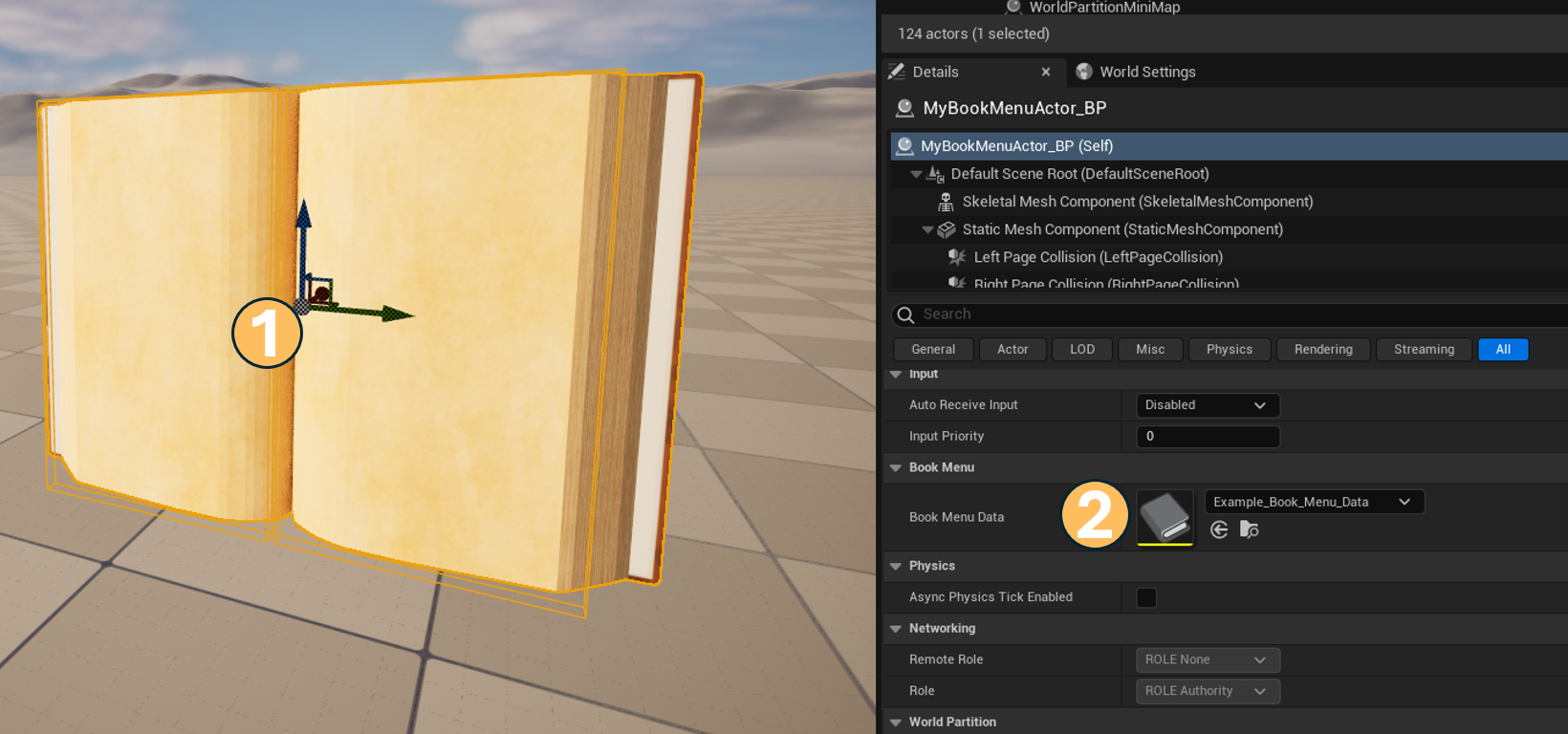
### Set Book Menu Data at run time

The Book Menu Data can also be set after Begin play at run time.  
It can be set either on the Book Menu Component or the Book Menu Actor directly

#### Book Menu Component

Let's assume the Book Menu Component is instantiated on an Actor called PlayerPawn.  
Inside the PlayerPawn Blueprint on the Begin Play function, we want to set the Book Menu Data at run time.

To do this we can simply call the function "SetBookMenuData" on the Book Menu Component.

[![image.png](https://docs.suricoon.com/uploads/images/gallery/2024-03/scaled-1680-/Csuimage.png)](https://docs.suricoon.com/uploads/images/gallery/2024-03/Csuimage.png)
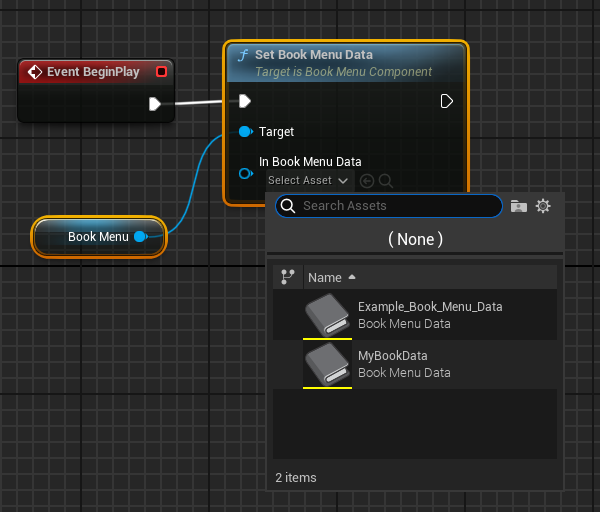
At Begin Play this will set the Book Menu Data and initialize all necessary parts of the Book Menu Component.

#### Book Menu Actor

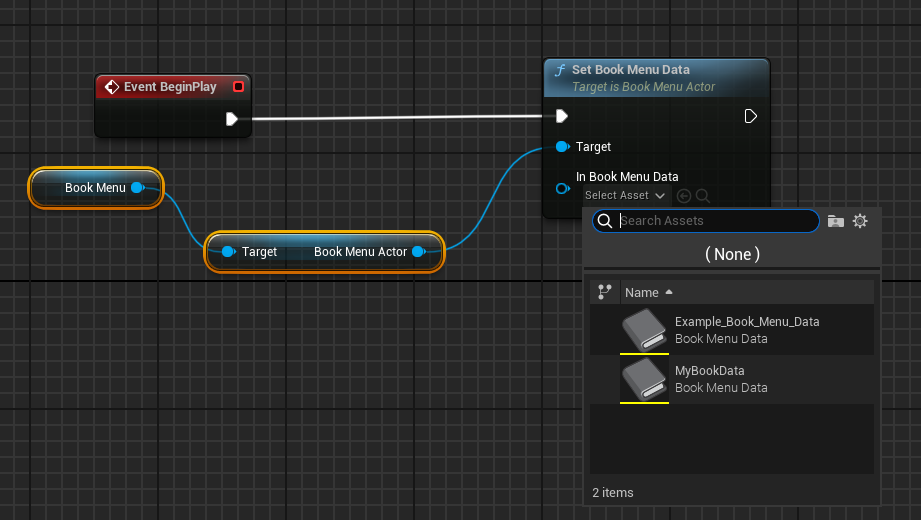
the same function can also be called directly on the Book Menu Actor. Again, let's assume the Book Menu Component is instantiated on an Actor called PlayerPawn.  
Inside the PlayerPawn Blueprint on the Begin Play function, we want to set the Book Menu Data at run time.

But this time we get the Book Menu Actor first from the Book Menu Component and call the function "SetBookMenuData" on the Book Menu Acor directly instead.

<p class="callout info">The example might look a bit silly but actually this shows us that the functions can be called on the Book Menu Actor as stand alone. In case we don't have a Book Menu Component (e.g. because the Book Menu Actor was placed directly in the World)</p>

[![image.png](https://docs.suricoon.com/uploads/images/gallery/2024-03/scaled-1680-/xkvimage.png)](https://docs.suricoon.com/uploads/images/gallery/2024-03/xkvimage.png)

### Add Page Sections to the Book Menu Data at run time

Usually the Book Menu Data Assets get created at design time, which means inside the content browser before running the game.  
Sometimes you may want to add some page sections dynamically at runtime.

Because the Book Menu Data Assets instances created in the Content Browser might be used by many different Book Menu Actors (or Book Menu Components), it might not be a good idea to manipulate the  
Book Menu Data instances directly. Because this change would affect any Book Menu Actor that has a reference to the Book Menu Data Asset.  
  
The Bok Menu Plugin cares about this problem by cloning the Book Menu Data Asset first before using it internally. Additionally the Plugin provides a function to create runtime instances of the Book Menu Data Assets to work with at runtme  
without manipulating the default instances.

Let's assume the Book Menu Component is instantiated on an Actor called PlayerPawn.  
Inside the PlayerPawn Blueprint on the Begin Play function, we want to

- create a runtime instance of a Book Menu Data Asset
- add a page section to it
- set the new Book Menu Data on the Book Menu Component
- open the book at the newly created section

Here you can see the Blueprint for this:


<iframe allowfullscreen="allowfullscreen" scrolling="no" src="https://blueprintue.com/render/d-r-48r8/" style="width: 100%; height: 600px;"></iframe>

# Controlling the pages of the book

## Overview

Controlling the behavior of the book is straight forward and easy. You can use the exposed blueprint functions o perform the different actions on the `BookMenuActor` class:

- `Open Book At` - Opens the book on a given index
- `Close Book` - Closes the book
- `Jump to Page Section` - Performs a Page Turn Animation to move forward or backward in the book pages

## How to call the functions?

The above mentioned functions are implemented in the `BookMenuActor` class. To call those functions, you can either invoke them on the `BookMenuActor` directly or calling them from anywhere by using a reference of the respective `BookMenuActor`

**On the BookMenuActor directly**

---

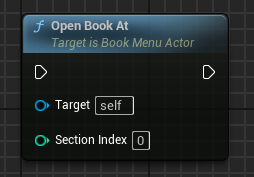
Inside a Blueprint which is derived from `BookMenuActor`, you can directly call the book control functions:

[![](https://docs.suricoon.com/uploads/images/gallery/2024-07/scaled-1680-/image-1721559085718.png)](https://docs.suricoon.com/uploads/images/gallery/2024-07/image-1721559085718.png)
**On the BookMenuComponent**

---

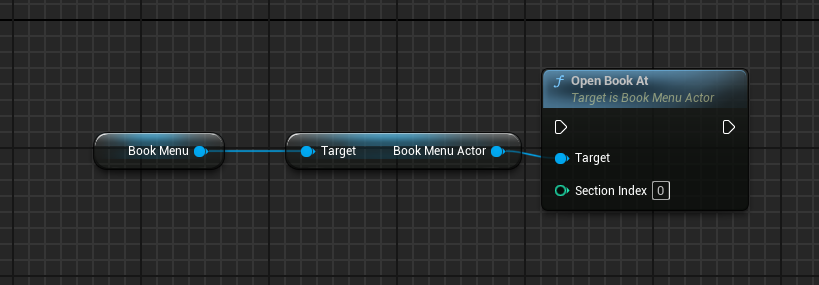
If you have a reference to the `BookMenuComponent` you can call the book menu control functions via a reference on the `BookMenuActor`:

[![](https://docs.suricoon.com/uploads/images/gallery/2024-07/scaled-1680-/image-1721559133617.png)](https://docs.suricoon.com/uploads/images/gallery/2024-07/image-1721559133617.png)
## Book Control Functions

### Open Book At

<iframe allowfullscreen="allowfullscreen" id="bkmrk--3" scrolling="no" src="https://blueprintue.com/render/qwkfuf2-/" style="width: 100%; height: 230px;"></iframe>

<table id="bkmrk-parameter-descriptio"><thead><tr><th>Parameter</th><th>Description</th></tr></thead><tbody><tr><td>Section Index</td><td>The Page Section Index to be displayed while opening the book</td></tr></tbody></table>

Use this function to open the book on a specific `page section index`. By default this is 0 which means that the book will open on the first pair of pages.\\

> **Hint** - If the book is already in an opned state, call ing this function will implicitly call the `Jump to Page Section` function instead

To find out if the book is opened or closed you can us the following function:

<iframe allowfullscreen="allowfullscreen" id="bkmrk--4" scrolling="no" src="https://blueprintue.com/render/wf9zi83p/" style="width: 100%; height: 250px;"></iframe>

The function will return `true` if the book is already fully open.  
The function will return `false` if the book is closed or the open animation is still in progress.

To find out if the book should be opening at the moment, you can call the following function:

<iframe allowfullscreen="allowfullscreen" id="bkmrk--5" scrolling="no" src="https://blueprintue.com/render/e9vaxouo/" style="width: 100%; height: 250px;"></iframe>

The function will return `true` if the book should be in an open state but is not yet fully open.   
The function will return `false` if the book is fully open.

### Close Book

<iframe allowfullscreen="allowfullscreen" id="bkmrk--6" scrolling="no" src="https://blueprintue.com/render/sz8-0co0/" style="width: 100%; height: 230px;"></iframe>

This function will close the book.

To find out if the book should be in a closed sate, you can call this function:

<iframe allowfullscreen="allowfullscreen" id="bkmrk--7" scrolling="no" src="https://blueprintue.com/render/ho7vx26t/" style="width: 100%; height: 250px;"></iframe>

The function will return `true` if the book should be in an closed state but is not yet fully closed.   
The function will return `false` if the book is fully closed.

### Jump to Page Section

<iframe allowfullscreen="allowfullscreen" id="bkmrk--8" scrolling="no" src="https://blueprintue.com/render/q0k1uw9u/" style="width: 100%; height: 230px;"></iframe>

<table id="bkmrk-parameter-descriptio-0"><thead><tr><th>Parameter</th><th>Description</th></tr></thead><tbody><tr><td>Section Index</td><td>The Page Section Index to be navigated to</td></tr></tbody></table>

Using this function you can navigate through the `page sections` of the book. Depending on the `Current Page Section Index` the function will either perform a page turn animation forward or backwards.

> **Examples:** - If the `Section Index` parameter is greater than the `Current Page Section Index` a page turn forward will be performed  
> if the `Section Index` parameter is smaller than the `Current Page Section Index` a page turn backward will be performed

To get the current active page section index you can call the following function:

<iframe allowfullscreen="allowfullscreen" id="bkmrk--9" scrolling="no" src="https://blueprintue.com/render/88c5u9by/" style="width: 100%; height: 250px;"></iframe>

This will return the index of current active `page section index`

> **Note:** - Do not confuse the `page scetion index` with the `page index`. The `page index` indicates the left `0` or right `1` page of a page section

# Additional Resources


# Example Project

You can download the Example Projects here:  [AnimatedBookMenu\_ExampleProjects.zip](https://suricooncom-my.sharepoint.com/:u:/g/personal/stefan_suricoon_com/EWDPSPGls-FAltGbvacieVUBg1y_Zr5zHwbhGw1zCw-XhA?e=VITq7M)

# More Turorials

Please have a look onto my [Youtube Channel](https://www.youtube.com/@suricoon) for more tutorials, which will be added from time to time!

# Blueprint Interface Documentation


# ABookMenuActor

### Properties

<table border="1" id="bkmrk-property-name-type-a" style="border-collapse: collapse; width: 100%; height: 290.167px;"><colgroup><col style="width: 21.3756%;"></col><col style="width: 25.0824%;"></col><col style="width: 18.907%;"></col><col style="width: 34.5938%;"></col></colgroup><tbody><tr style="height: 29.4583px;"><td style="height: 29.4583px;">**Property Name**</td><td style="height: 29.4583px;">**Type**</td><td style="height: 29.4583px;">**Access**</td><td style="height: 29.4583px;">**Description**</td></tr><tr style="height: 29.4583px;"><td style="height: 29.4583px;">BookMenuData</td><td style="height: 29.4583px;">UBookMenuData</td><td style="height: 29.4583px;">EditAnywhere</td><td style="height: 29.4583px;">Default Configuration Data for the Book, containing information such as the the widgets to be displayed as book pages</td></tr><tr style="height: 46.25px;"><td style="height: 46.25px;">SkeletalMeshComponent</td><td style="height: 46.25px;">USkeletalMeshComponent</td><td style="height: 46.25px;">VisibleAnywhere, BlueprintReadOnly</td><td style="height: 46.25px;">The animated book mesh</td></tr><tr style="height: 46.25px;"><td style="height: 46.25px;">StaticMeshComponent</td><td style="height: 46.25px;">UStaticMeshComponent</td><td style="height: 46.25px;">VisibleAnywhere, BlueprintReadOnly</td><td style="height: 46.25px;">A dummy static mesh component for doing traces. Needed to determine the UV coordinates based on trace hit results. The static mesh will be hidden in game. Must represent the book in a open state.</td></tr><tr style="height: 46.25px;"><td style="height: 46.25px;">LeftPageCollision</td><td style="height: 46.25px;">UBoxComponent</td><td style="height: 46.25px;">VisibleAnywhere, BlueprintReadOnly</td><td style="height: 46.25px;">Collision box used to determine which page of the book was traced </td></tr><tr style="height: 46.25px;"><td style="height: 46.25px;">RightPageCollision</td><td style="height: 46.25px;">UBoxComponent</td><td style="height: 46.25px;">VisibleAnywhere, BlueprintReadOnly</td><td style="height: 46.25px;">Collision box used to determine which page of the book was traced </td></tr><tr style="height: 46.25px;"><td style="height: 46.25px;">InteractionActor</td><td style="height: 46.25px;">ABookMenuInteractionActor</td><td style="height: 46.25px;">EditAnywhere, BlueprintReadOnly</td><td style="height: 46.25px;">Reference to the actor that redirects the interaction to a widget interaction component</td></tr></tbody></table>

### Functions

#### Set Book Menu Data

---

<iframe allowfullscreen="allowfullscreen" scrolling="no" src="https://blueprintue.com/render/q_eobj65/" style="width: 100%; height: 250px;"></iframe>

Can be used to set the book menu data after begin play, during the game

<table border="1" id="bkmrk-parameter-type-descr" style="border-collapse: collapse; width: 100%;"><colgroup><col style="width: 20.14%;"></col><col style="width: 14.458%;"></col><col style="width: 25.2043%;"></col><col style="width: 40.2801%;"></col></colgroup><tbody><tr><td>**Pin**</td><td>**Direction**</td><td>**Type**</td><td>**Description**</td></tr><tr><td>In Book Menu Data</td><td>Input</td><td>UBookMenuData</td><td>The new Book Menu Data. Will be cloned internally.</td></tr></tbody></table>

####   


#### Get Book Menu Data

---

<iframe allowfullscreen="allowfullscreen" scrolling="no" src="https://blueprintue.com/render/kc-eqoww/" style="width: 100%; height: 250px;"></iframe>

Can be used to set the book menu data after begin play, during the game

<table border="1" id="bkmrk-pin-direction-type-d" style="border-collapse: collapse; width: 100%;"><colgroup><col style="width: 20.14%;"></col><col style="width: 14.458%;"></col><col style="width: 25.2043%;"></col><col style="width: 40.2801%;"></col></colgroup><tbody><tr><td>**Pin**</td><td>**Direction**</td><td>**Type**</td><td>**Description**</td></tr><tr><td>Return Value</td><td>Output</td><td>UBookMenuData</td><td>A clone of the current Book Menu Data</td></tr></tbody></table>

#### Get Current Page Section Index

---

<iframe allowfullscreen="allowfullscreen" scrolling="no" src="https://blueprintue.com/render/88c5u9by/" style="width: 100%; height: 250px;"></iframe>

Can be used to get the current page section index. The page section index indicates the currently shown pair of pages. (Index of the PageSection Array inside the BookMenuData)

<table border="1" id="bkmrk-pin-direction-type-d-0" style="border-collapse: collapse; width: 100%;"><colgroup><col style="width: 20.14%;"></col><col style="width: 14.458%;"></col><col style="width: 25.2043%;"></col><col style="width: 40.2801%;"></col></colgroup><tbody><tr><td>**Pin**</td><td>**Direction**</td><td>**Type**</td><td>**Description**</td></tr><tr><td>Return Value</td><td>Output</td><td>Integer</td><td>the current page section index; -1 in case Anim Instance is not defined</td></tr></tbody></table>

#### Get Pending Page Section Index

---

<iframe allowfullscreen="allowfullscreen" scrolling="no" src="https://blueprintue.com/render/vbr9u9x_/" style="width: 100%; height: 250px;"></iframe>

Can be used to get the pending page section index. The pending page section index indicates the currently pending pair of pages while switching pages is in progress.

<table border="1" id="bkmrk-pin-direction-type-d-1" style="border-collapse: collapse; width: 100%;"><colgroup><col style="width: 20.14%;"></col><col style="width: 14.458%;"></col><col style="width: 25.2043%;"></col><col style="width: 40.2801%;"></col></colgroup><tbody><tr><td>**Pin**</td><td>**Direction**</td><td>**Type**</td><td>**Description**</td></tr><tr><td>Return Value</td><td>Output</td><td>Integer</td><td>the pending page section index; -1 in case Anim Instance is not defined</td></tr></tbody></table>

#### Get Current Page Index

---

<iframe allowfullscreen="allowfullscreen" scrolling="no" src="https://blueprintue.com/render/mrdwrfyw/" style="width: 100%; height: 250px;"></iframe>

Can be used to get the index of the current page, where the interaction pointer points on.

<table border="1" id="bkmrk-pin-direction-type-d-2" style="border-collapse: collapse; width: 100%;"><colgroup><col style="width: 20.14%;"></col><col style="width: 14.458%;"></col><col style="width: 25.2043%;"></col><col style="width: 40.2801%;"></col></colgroup><tbody><tr><td>**Pin**</td><td>**Direction**</td><td>**Type**</td><td>**Description**</td></tr><tr><td>Return Value</td><td>Output</td><td>Integer</td><td>the current page index 0 = Left ; 1 = Right  
returns -1 in case Anim Instance is not defined</td></tr></tbody></table>

#### Get Book Is Open

---

<iframe allowfullscreen="allowfullscreen" scrolling="no" src="https://blueprintue.com/render/wf9zi83p/" style="width: 100%; height: 250px;"></iframe>

Can be used to check if the book is in an opened state

<table border="1" id="bkmrk-pin-direction-type-d-3" style="border-collapse: collapse; width: 100%; height: 59.5938px;"><colgroup><col style="width: 20.14%;"></col><col style="width: 14.458%;"></col><col style="width: 25.2043%;"></col><col style="width: 40.2801%;"></col></colgroup><tbody><tr style="height: 29.7969px;"><td style="height: 29.7969px;">**Pin**</td><td style="height: 29.7969px;">**Direction**</td><td style="height: 29.7969px;">**Type**</td><td style="height: 29.7969px;">**Description**</td></tr><tr style="height: 29.7969px;"><td style="height: 29.7969px;">Return Value</td><td style="height: 29.7969px;">Output</td><td style="height: 29.7969px;">Boolean</td><td style="height: 29.7969px;">true if the book is in open state; false if the book is in closed state</td></tr></tbody></table>

#### Get Book Should Open

---

<iframe allowfullscreen="allowfullscreen" scrolling="no" src="https://blueprintue.com/render/e9vaxouo/" style="width: 100%; height: 250px;"></iframe>

Can be used to check if the book should be in an opened state but opening is still in progress.

<table border="1" id="bkmrk-pin-direction-type-d-4" style="border-collapse: collapse; width: 100%; height: 59.5938px;"><colgroup><col style="width: 20.14%;"></col><col style="width: 14.458%;"></col><col style="width: 25.2043%;"></col><col style="width: 40.2801%;"></col></colgroup><tbody><tr style="height: 29.7969px;"><td style="height: 29.7969px;">**Pin**</td><td style="height: 29.7969px;">**Direction**</td><td style="height: 29.7969px;">**Type**</td><td style="height: 29.7969px;">**Description**</td></tr><tr style="height: 29.7969px;"><td style="height: 29.7969px;">Return Value</td><td style="height: 29.7969px;">Output</td><td style="height: 29.7969px;">Boolean</td><td style="height: 29.7969px;">true if the book should be in open state</td></tr></tbody></table>

#### Get Book Should Close

---

<iframe allowfullscreen="allowfullscreen" scrolling="no" src="https://blueprintue.com/render/ho7vx26t/" style="width: 100%; height: 250px;"></iframe>

Can be used to check of the book should be in a closed state but closing is still in progress.

<table border="1" id="bkmrk-pin-direction-type-d-5" style="border-collapse: collapse; width: 100%; height: 59.5938px;"><colgroup><col style="width: 20.14%;"></col><col style="width: 14.458%;"></col><col style="width: 25.2043%;"></col><col style="width: 40.2801%;"></col></colgroup><tbody><tr style="height: 29.7969px;"><td style="height: 29.7969px;">**Pin**</td><td style="height: 29.7969px;">**Direction**</td><td style="height: 29.7969px;">**Type**</td><td style="height: 29.7969px;">**Description**</td></tr><tr style="height: 29.7969px;"><td style="height: 29.7969px;">Return Value</td><td style="height: 29.7969px;">Output</td><td style="height: 29.7969px;">Boolean</td><td style="height: 29.7969px;">true if the book should be in closed state</td></tr></tbody></table>

#### Get Page Sections

---

<iframe allowfullscreen="allowfullscreen" scrolling="no" src="https://blueprintue.com/render/r_hcbm7k/" style="width: 100%; height: 250px;"></iframe>

Can be used to get the Page Sections.

<table border="1" id="bkmrk-pin-direction-type-d-6" style="border-collapse: collapse; width: 100%; height: 59.5938px;"><colgroup><col style="width: 20.14%;"></col><col style="width: 14.458%;"></col><col style="width: 25.2043%;"></col><col style="width: 40.2801%;"></col></colgroup><tbody><tr style="height: 29.7969px;"><td style="height: 29.7969px;">**Pin**</td><td style="height: 29.7969px;">**Direction**</td><td style="height: 29.7969px;">**Type**</td><td style="height: 29.7969px;">**Description**</td></tr><tr style="height: 29.7969px;"><td style="height: 29.7969px;">Return Value</td><td style="height: 29.7969px;">Output</td><td style="height: 29.7969px;">TMap&lt;int32,FPageSectionDataStruct&gt;</td><td style="height: 29.7969px;">an Map of the page sections of the book</td></tr></tbody></table>

#### Get Interaction Actor

---

<iframe allowfullscreen="allowfullscreen" scrolling="no" src="https://blueprintue.com/render/j_bb60lt/" style="width: 100%; height: 230px;"></iframe>

Returns the reference to the Book Menu Interaction Actor

<table border="1" id="bkmrk-pin-direction-type-d-7" style="border-collapse: collapse; width: 100%;"><colgroup><col style="width: 20.14%;"></col><col style="width: 14.458%;"></col><col style="width: 25.2043%;"></col><col style="width: 40.2801%;"></col></colgroup><tbody><tr><td>**Pin**</td><td>**Direction**</td><td>**Type**</td><td>**Description**</td></tr><tr><td>Return Value</td><td>Output</td><td>ABookMenuInteractionActor</td><td>Returns the reference to the Book Menu Interaction Actor</td></tr></tbody></table>

#### Set Interaction Actor

---

<iframe allowfullscreen="allowfullscreen" scrolling="no" src="https://blueprintue.com/render/2_zevcpm/" style="width: 100%; height: 230px;"></iframe>

Registers the Book Menu Interaction Actor to be used for Interaction with the Book

<table border="1" id="bkmrk-pin-direction-type-d-8" style="border-collapse: collapse; width: 100%;"><colgroup><col style="width: 20.14%;"></col><col style="width: 14.458%;"></col><col style="width: 25.2043%;"></col><col style="width: 40.2801%;"></col></colgroup><tbody><tr><td>**Pin**</td><td>**Direction**</td><td>**Type**</td><td>**Description**</td></tr><tr><td>In Interaction Actor</td><td>Input</td><td>ABookMenuInteractionActor</td><td>The Book Menu Interaction Actor to be set</td></tr></tbody></table>

####   


#### Register Interaction Component

---

<iframe allowfullscreen="allowfullscreen" scrolling="no" src="https://blueprintue.com/render/-vk_0z48/" style="width: 100%; height: 230px;"></iframe>

Method to register a Book Menu Interaction Component

<table border="1" id="bkmrk-pin-direction-type-d-9" style="border-collapse: collapse; width: 100%;"><colgroup><col style="width: 20.14%;"></col><col style="width: 14.458%;"></col><col style="width: 25.2043%;"></col><col style="width: 40.2801%;"></col></colgroup><tbody><tr><td>**Pin**</td><td>**Direction**</td><td>**Type**</td><td>**Description**</td></tr><tr><td>In Interaction Component</td><td>Input</td><td>UBookMenuInteractionComponent</td><td>The Book Menu Interaction Component to be registered. </td></tr></tbody></table>

#### Register Interaction Actor

---

<iframe allowfullscreen="allowfullscreen" scrolling="no" src="https://blueprintue.com/render/cm05ro-o/" style="width: 100%; height: 230px;"></iframe>

Method to register a Book Menu Interaction Component

<table border="1" id="bkmrk-pin-direction-type-d-10" style="border-collapse: collapse; width: 100%;"><colgroup><col style="width: 20.14%;"></col><col style="width: 14.458%;"></col><col style="width: 25.2043%;"></col><col style="width: 40.2801%;"></col></colgroup><tbody><tr><td>**Pin**</td><td>**Direction**</td><td>**Type**</td><td>**Description**</td></tr><tr><td>In Interaction Actor</td><td>Input</td><td>UBookMenuInteractionActor</td><td>The Book Menu Interaction Actor to be registered. </td></tr></tbody></table>

#### Jump to Page Section

---

<iframe allowfullscreen="allowfullscreen" scrolling="no" src="https://blueprintue.com/render/q0k1uw9u/" style="width: 100%; height: 230px;"></iframe>

Determines if a forward or backward page turn need to be performed based on the current page section index.

<table border="1" id="bkmrk-pin-direction-type-d-11" style="border-collapse: collapse; width: 100%;"><colgroup><col style="width: 20.14%;"></col><col style="width: 14.458%;"></col><col style="width: 25.2043%;"></col><col style="width: 40.2801%;"></col></colgroup><tbody><tr><td>**Pin**</td><td>**Direction**</td><td>**Type**</td><td>**Description**</td></tr><tr><td>Section Index</td><td>Input</td><td>int32</td><td>The index of the Page Section to be displayed</td></tr></tbody></table>

#### Open Book At

---

<iframe allowfullscreen="allowfullscreen" scrolling="no" src="https://blueprintue.com/render/qwkfuf2-/" style="width: 100%; height: 230px;"></iframe>

If the book is closed, this triggers the open book animation and upfront sets the correct section to display.

<table border="1" id="bkmrk-pin-direction-type-d-12" style="border-collapse: collapse; width: 100%;"><colgroup><col style="width: 20.14%;"></col><col style="width: 14.458%;"></col><col style="width: 25.2043%;"></col><col style="width: 40.2801%;"></col></colgroup><tbody><tr><td>**Pin**</td><td>**Direction**</td><td>**Type**</td><td>**Description**</td></tr><tr><td>Section Index</td><td>Input</td><td>int32</td><td>The Page Section Index to be displayed while opening the book

</td></tr></tbody></table>

####   


#### Close Book

---

<iframe allowfullscreen="allowfullscreen" scrolling="no" src="https://blueprintue.com/render/sz8-0co0/" style="width: 100%; height: 230px;"></iframe>

Triggers the Close Book animation

#### Pause Book Update

---

<iframe allowfullscreen="allowfullscreen" scrolling="no" src="https://blueprintue.com/render/cud5z237/" style="width: 100%; height: 230px;"></iframe>

Pauses the animation update of the anim instance without closing the book first.

#### Resume Book Update

---

<iframe allowfullscreen="allowfullscreen" scrolling="no" src="https://blueprintue.com/render/umzavnsl/" style="width: 100%; height: 230px;"></iframe>

Resume the animation update of the anim instance. Will only resume if the book is already open. Closed books don't need to consume render time

#### Interact

---

<iframe allowfullscreen="allowfullscreen" scrolling="no" src="https://blueprintue.com/render/h-uwy8ko/" style="width: 100%; height: 350px;"></iframe>

Performs a Line Trace based on the Start and End Parameters and moves the Widget Interaction pointer of the Book Menu Interaction Actor if it is set. Also tells the Animation Blueprint which page was traced to.

<table border="1" id="bkmrk-pin-direction-type-d-13" style="border-collapse: collapse; width: 100%; height: 274.896px;"><colgroup><col style="width: 20.14%;"></col><col style="width: 14.458%;"></col><col style="width: 25.2043%;"></col><col style="width: 40.2801%;"></col></colgroup><tbody><tr style="height: 29.4583px;"><td style="height: 29.4583px;">**Pin**</td><td style="height: 29.4583px;">**Direction**</td><td style="height: 29.4583px;">**Type**</td><td style="height: 29.4583px;">**Description**</td></tr><tr style="height: 35.0625px;"><td style="height: 35.0625px;">Start</td><td style="height: 35.0625px;">Input</td><td style="height: 35.0625px;">FVector</td><td style="height: 35.0625px;">Start of the Line Trace

</td></tr><tr style="height: 35.0625px;"><td style="height: 35.0625px;">End</td><td style="height: 35.0625px;">Input</td><td style="height: 35.0625px;">FVector</td><td style="height: 35.0625px;">End of the Line Trace

</td></tr><tr style="height: 35.0625px;"><td style="height: 35.0625px;">Debug Trace</td><td style="height: 35.0625px;">Input</td><td style="height: 35.0625px;">bool</td><td style="height: 35.0625px;">Shows a debug trace if true.

</td></tr><tr style="height: 35.0625px;"><td style="height: 35.0625px;">Trace Channel</td><td style="height: 35.0625px;">Input</td><td style="height: 35.0625px;">ECollisionChannel</td><td style="height: 35.0625px;">The Collision Channel to be used for the line trace.

</td></tr><tr style="height: 35.0625px;"><td style="height: 35.0625px;">Success</td><td style="height: 35.0625px;">Output</td><td style="height: 35.0625px;">EXEC</td><td style="height: 35.0625px;">Indicates if the Interaction was executed successfully

</td></tr><tr style="height: 35.0625px;"><td style="height: 35.0625px;">Failed</td><td style="height: 35.0625px;">Output</td><td style="height: 35.0625px;">EXEC</td><td style="height: 35.0625px;">Indicates if the Interaction was not executed successfully

</td></tr><tr style="height: 35.0625px;"><td style="height: 35.0625px;">Return Value</td><td style="height: 35.0625px;">Output</td><td style="height: 35.0625px;">bool</td><td style="height: 35.0625px;">returns tru if the operation was successful. Otherwise false

</td></tr></tbody></table>

#### InteractExt (Release 1.4+)

---

<iframe allowfullscreen="allowfullscreen" scrolling="no" src="https://blueprintue.com/render/j_frwjql/" style="width: 100%; height: 350px;"></iframe>

Performs a Line Trace based on the Start and End Parameters and moves the Widget Interaction pointer of the Book Menu Interaction Actor if it is set. Also tells the Animation Blueprint which page was traced to.

<table border="1" id="bkmrk-pin-direction-type-d-14" style="border-collapse: collapse; width: 100%; height: 274.896px;"><colgroup><col style="width: 20.14%;"></col><col style="width: 14.458%;"></col><col style="width: 25.2043%;"></col><col style="width: 40.2801%;"></col></colgroup><tbody><tr style="height: 29.4583px;"><td style="height: 29.4583px;">**Pin**</td><td style="height: 29.4583px;">**Direction**</td><td style="height: 29.4583px;">**Type**</td><td style="height: 29.4583px;">**Description**</td></tr><tr style="height: 35.0625px;"><td style="height: 35.0625px;">Start</td><td style="height: 35.0625px;">Input</td><td style="height: 35.0625px;">FVector</td><td style="height: 35.0625px;">Start of the Line Trace

</td></tr><tr style="height: 35.0625px;"><td style="height: 35.0625px;">End</td><td style="height: 35.0625px;">Input</td><td style="height: 35.0625px;">FVector</td><td style="height: 35.0625px;">End of the Line Trace

</td></tr><tr><td>OutUVCoordinates</td><td>Output</td><td>FVectro2d</td><td>The UV coordinates of the traced page

</td></tr><tr style="height: 35.0625px;"><td style="height: 35.0625px;">Debug Trace</td><td style="height: 35.0625px;">Input</td><td style="height: 35.0625px;">bool</td><td style="height: 35.0625px;">Shows a debug trace if true.

</td></tr><tr style="height: 35.0625px;"><td style="height: 35.0625px;">Trace Channel</td><td style="height: 35.0625px;">Input</td><td style="height: 35.0625px;">ECollisionChannel</td><td style="height: 35.0625px;">The Collision Channel to be used for the line trace.

</td></tr><tr style="height: 35.0625px;"><td style="height: 35.0625px;">Success</td><td style="height: 35.0625px;">Output</td><td style="height: 35.0625px;">EXEC</td><td style="height: 35.0625px;">Indicates if the Interaction was executed successfully

</td></tr><tr style="height: 35.0625px;"><td style="height: 35.0625px;">Failed</td><td style="height: 35.0625px;">Output</td><td style="height: 35.0625px;">EXEC</td><td style="height: 35.0625px;">Indicates if the Interaction was not executed successfully

</td></tr><tr style="height: 35.0625px;"><td style="height: 35.0625px;">Return Value</td><td style="height: 35.0625px;">Output</td><td style="height: 35.0625px;">bool</td><td style="height: 35.0625px;">returns tru if the operation was successful. Otherwise false

</td></tr></tbody></table>

#### Set Keyboard Focus

---

<iframe allowfullscreen="allowfullscreen" scrolling="no" src="https://blueprintue.com/render/eq18x_-s/" style="width: 100%; height: 350px;"></iframe>

<table border="1" id="bkmrk-pin-direction-type-d-15" style="border-collapse: collapse; width: 100%; height: 274.896px;"><colgroup><col style="width: 20.14%;"></col><col style="width: 14.458%;"></col><col style="width: 25.2043%;"></col><col style="width: 40.2801%;"></col></colgroup><tbody><tr style="height: 29.4583px;"><td style="height: 29.4583px;">**Pin**</td><td style="height: 29.4583px;">**Direction**</td><td style="height: 29.4583px;">**Type**</td><td style="height: 29.4583px;">**Description**</td></tr><tr style="height: 35.0625px;"><td style="height: 35.0625px;">In Page Index</td><td style="height: 35.0625px;">Input</td><td style="height: 35.0625px;">Integer</td><td style="height: 35.0625px;">The page index to set the focus to

</td></tr><tr style="height: 35.0625px;"><td style="height: 35.0625px;">Debug Trace</td><td style="height: 35.0625px;">Input</td><td style="height: 35.0625px;">bool</td><td style="height: 35.0625px;">Shows a debug trace if true.

</td></tr><tr style="height: 35.0625px;"><td style="height: 35.0625px;">Success</td><td style="height: 35.0625px;">Output</td><td style="height: 35.0625px;">EXEC</td><td style="height: 35.0625px;">Indicates if the Interaction was executed successfully

</td></tr><tr style="height: 35.0625px;"><td style="height: 35.0625px;">Failed</td><td style="height: 35.0625px;">Output</td><td style="height: 35.0625px;">EXEC</td><td style="height: 35.0625px;">Indicates if the Interaction was not executed successfully

</td></tr><tr style="height: 35.0625px;"><td style="height: 35.0625px;">Return Value</td><td style="height: 35.0625px;">Output</td><td style="height: 35.0625px;">bool</td><td style="height: 35.0625px;">returns tru if the operation was successful. Otherwise false

</td></tr></tbody></table>

#### Get Anim Instance

---

<iframe allowfullscreen="allowfullscreen" scrolling="no" src="https://blueprintue.com/render/3kvjld3d/" style="width: 100%; height: 230px;"></iframe>

Returns the Animation Instance of the Animation Blueprint

<table border="1" id="bkmrk-pin-direction-type-d-16" style="border-collapse: collapse; width: 100%;"><colgroup><col style="width: 20.14%;"></col><col style="width: 14.458%;"></col><col style="width: 25.2043%;"></col><col style="width: 40.2801%;"></col></colgroup><tbody><tr><td>**Pin**</td><td>**Direction**</td><td>**Type**</td><td>**Description**</td></tr><tr><td>Return Value</td><td>Output</td><td>UBookMenuAnimInstance</td><td></td></tr></tbody></table>

####   


#### Get Left Page Collision Box

---

<iframe allowfullscreen="allowfullscreen" scrolling="no" src="https://blueprintue.com/render/70_exsbc/" style="width: 100%; height: 230px;"></iframe>

Returns the Collision Box of the left page

<table border="1" id="bkmrk-pin-direction-type-d-17" style="border-collapse: collapse; width: 100%;"><colgroup><col style="width: 20.14%;"></col><col style="width: 14.458%;"></col><col style="width: 25.2043%;"></col><col style="width: 40.2801%;"></col></colgroup><tbody><tr><td>**Pin**</td><td>**Direction**</td><td>**Type**</td><td>**Description**</td></tr><tr><td>Return Value</td><td>Output</td><td>UBoxComponent</td><td>  
</td></tr></tbody></table>

####   


#### Get Right Page Collision Box

---

<iframe allowfullscreen="allowfullscreen" scrolling="no" src="https://blueprintue.com/render/axla_z2t/" style="width: 100%; height: 230px;"></iframe>

Returns the Collision Box of the right page

<table border="1" id="bkmrk-pin-direction-type-d-18" style="border-collapse: collapse; width: 100%;"><colgroup><col style="width: 20.14%;"></col><col style="width: 14.458%;"></col><col style="width: 25.2043%;"></col><col style="width: 40.2801%;"></col></colgroup><tbody><tr><td>**Pin**</td><td>**Direction**</td><td>**Type**</td><td>**Description**</td></tr><tr><td>Return Value</td><td>Output</td><td>UBoxComponent</td><td>  
</td></tr></tbody></table>

####   


#### Get Static Mesh Component

---

<iframe allowfullscreen="allowfullscreen" scrolling="no" src="https://blueprintue.com/render/1ly9qsio/" style="width: 100%; height: 230px;"></iframe>

Returns the Static Mesh Component

<table border="1" id="bkmrk-pin-direction-type-d-19" style="border-collapse: collapse; width: 100%;"><colgroup><col style="width: 20.14%;"></col><col style="width: 14.458%;"></col><col style="width: 25.2043%;"></col><col style="width: 40.2801%;"></col></colgroup><tbody><tr><td>**Pin**</td><td>**Direction**</td><td>**Type**</td><td>**Description**</td></tr><tr><td>Return Value</td><td>Output</td><td>UStaticMeshComponent</td><td>  
</td></tr></tbody></table>

# ABookMenuInteractionActor

### Properties

<table border="1" id="bkmrk-property-name-type-a" style="border-collapse: collapse; width: 100%; height: 290.167px;"><colgroup><col style="width: 26.46648%;"></col><col style="width: 26.675978%;"></col><col style="width: 17.527933%;"></col><col style="width: 29.259777%;"></col></colgroup><tbody><tr style="height: 29.4583px;"><td style="height: 29.4583px;">**Property Name**</td><td style="height: 29.4583px;">**Type**</td><td style="height: 29.4583px;">**Access**</td><td style="height: 29.4583px;">**Description**</td></tr><tr style="height: 29.4583px;"><td style="height: 29.4583px;">WidgetInteractionComponent</td><td style="height: 29.4583px;">UWidgetInteractionComponent</td><td style="height: 29.4583px;">VisibleAnywhere, BlueprintReadOnly</td><td style="height: 29.4583px;">The widget interaction component used to redirect the book interaction onto a Widget Component</td></tr><tr style="height: 46.25px;"><td style="height: 46.25px;">PageWidgetComponentA</td><td style="height: 46.25px;">UWidgetComponent</td><td style="height: 46.25px;">VisibleAnywhere, BlueprintReadOnly</td><td style="height: 46.25px;">The widget component used to display the first page</td></tr><tr><td style="height: 46.25px;">PageWidgetComponentB</td><td style="height: 46.25px;">UWidgetComponent</td><td style="height: 46.25px;">VisibleAnywhere, BlueprintReadOnly</td><td style="height: 46.25px;">The widget component used to display the second page</td></tr><tr><td style="height: 46.25px;">PageWidgetComponentC</td><td style="height: 46.25px;">UWidgetComponent</td><td style="height: 46.25px;">VisibleAnywhere, BlueprintReadOnly</td><td style="height: 46.25px;">The widget component used to display the third page</td></tr><tr><td style="height: 46.25px;">PageWidgetComponentD</td><td style="height: 46.25px;">UWidgetComponent</td><td style="height: 46.25px;">VisibleAnywhere, BlueprintReadOnly</td><td style="height: 46.25px;">The widget component used to display the fourth page</td></tr><tr><td style="height: 46.25px;">ActiveWidgetComponent</td><td style="height: 46.25px;">UWidgetComponent</td><td style="height: 46.25px;">VisibleAnywhere, BlueprintReadOnly</td><td style="height: 46.25px;">The widget component which is currently under interaction</td></tr><tr style="height: 46.25px;"><td style="height: 46.25px;">DrawSize</td><td style="height: 46.25px;">UStaticMeshComponent</td><td style="height: 46.25px;">VisibleAnywhere, BlueprintReadOnly</td><td style="height: 46.25px;">The Draw Size of the Widget. User Widgets and Render Targets must have the same resolution. Will be set via the Book Menu Data of the Book Menu Actor</td></tr></tbody></table>

### Functions

#### Move Pointer

---

<iframe allowfullscreen="allowfullscreen" scrolling="no" src="https://blueprintue.com/render/2x-tanww/" style="width: 100%; height: 250px;"></iframe>

Calculates the world location on the Page Widget based on the UV Coordinates of the Book Actors Book Mesh

<table border="1" id="bkmrk-parameter-type-descr" style="border-collapse: collapse; width: 100%;"><colgroup><col style="width: 20.14%;"></col><col style="width: 14.4563%;"></col><col style="width: 25.2059%;"></col><col style="width: 40.2801%;"></col></colgroup><tbody><tr><td>**Pin**</td><td>**Direction**</td><td>**Type**</td><td>**Description**</td></tr><tr><td>UV Coordinates</td><td>Input</td><td>FVector2D</td><td> UV Coordinates of the Book Page</td></tr><tr><td>Debug Trace</td><td>Input</td><td>bool</td><td>Shows a debug trace if true</td></tr><tr><td>Return Value</td><td>Output</td><td>bool</td><td>returns true if the operation was successful. Otherwise false.</td></tr></tbody></table>

#### Reset Pointer

---

Sets the Interaction Pointer to a safe spot which triggers no interaction

<table border="1" id="bkmrk-pin-direction-type-d" style="border-collapse: collapse; width: 100%;"><colgroup><col style="width: 20.14%;"></col><col style="width: 14.4563%;"></col><col style="width: 25.2059%;"></col><col style="width: 40.2801%;"></col></colgroup><tbody><tr><td>**Pin**</td><td>**Direction**</td><td>**Type**</td><td>**Description**</td></tr><tr><td>Debug Trace</td><td>Input</td><td>bool</td><td>Shows a debug trace if true</td></tr><tr><td>Return Value</td><td>Output</td><td>bool</td><td>returns true if the operation was successful. Otherwise false.</td></tr></tbody></table>


#### Get Interaction Component

---

<iframe allowfullscreen="allowfullscreen" scrolling="no" src="https://blueprintue.com/render/26k3_z9d/" style="width: 100%; height: 250px;"></iframe>

returns the Widget Interaction Component. Can be used to do further interaction with the widget such as send keys etc.

<table border="1" id="bkmrk-pin-direction-type-d-0" style="border-collapse: collapse; width: 100%;"><colgroup><col style="width: 20.14%;"></col><col style="width: 14.4563%;"></col><col style="width: 28.5393%;"></col><col style="width: 36.9467%;"></col></colgroup><tbody><tr><td>**Pin**</td><td>**Direction**</td><td>**Type**</td><td>**Description**</td></tr><tr><td>Return Value</td><td>Output</td><td>UWidgetInteractionComponent</td><td>  
</td></tr></tbody></table>

# UBookMenuData

### Properties

<table border="1" id="bkmrk-property-name-type-a" style="border-collapse: collapse; width: 100%; height: 290.167px;"><colgroup><col style="width: 21.3756%;"></col><col style="width: 34.4712%;"></col><col style="width: 17.1763%;"></col><col style="width: 26.9357%;"></col></colgroup><tbody><tr style="height: 29.4583px;"><td style="height: 29.4583px;">**Property Name**</td><td style="height: 29.4583px;">**Type**</td><td style="height: 29.4583px;">**Access**</td><td style="height: 29.4583px;">**Description**</td></tr><tr style="height: 29.4583px;"><td style="height: 29.4583px;">SkeletalMesh</td><td style="height: 29.4583px;">USkeletalMesh</td><td style="height: 29.4583px;">EditAnywhere</td><td style="height: 29.4583px;">The Skeletal Mesh to be set after Begin Play</td></tr><tr style="height: 46.25px;"><td style="height: 46.25px;">AnimInstanceClass</td><td style="height: 46.25px;">TSubclassOf&lt;UBookMenuAnimInstance&gt;</td><td style="height: 46.25px;">EditAnywhere</td><td style="height: 46.25px;">The Animation Blueprint class to be set after Begin Play</td></tr><tr style="height: 46.25px;"><td style="height: 46.25px;">PageMaterialIndexMapping</td><td style="height: 46.25px;">FPageMaterialIndexMapping</td><td style="height: 46.25px;">EditAnywhere</td><td style="height: 46.25px;">Mapping that tells us which Material Index of the Skeletal Mesh shall be used for which Page</td></tr><tr style="height: 46.25px;"><td style="height: 46.25px;">DefaultPageSection</td><td style="height: 46.25px;">FPageSectionDataStruct</td><td style="height: 46.25px;">EditAnywhere, BlueprintReadWrite</td><td style="height: 46.25px;">The Default Page Section to be used if no concrete Page Section is defined</td></tr><tr style="height: 46.25px;"><td style="height: 46.25px;">PageSections</td><td style="height: 46.25px;">TArray&lt;FPageSectionDataStruct&gt;</td><td style="height: 46.25px;">EditAnywhere, BlueprintReadWrite</td><td style="height: 46.25px;">List of Page Sections to be used inside the Book Menu Actor</td></tr><tr style="height: 46.25px;"><td style="height: 46.25px;">CoverMaterial</td><td style="height: 46.25px;">UMaterialInterface</td><td style="height: 46.25px;">EditAnywhere, BlueprintReadWrite</td><td style="height: 46.25px;">Material for the Cover</td></tr><tr><td>bBookBeginsPlayOpen</td><td>bool</td><td>EditAnywhere, BlueprintReadWrite</td><td>If the book shall begin play in an open state or closed state</td></tr><tr><td>StartPageSection</td><td>int32</td><td>EditAnywhere, BlueprintReadWrite</td><td>If the book shall begin play in an open state, this is the page section to open the book at. Can also be accessed by the Book Menu Actor to handle respective behavior.</td></tr><tr><td>DrawSize</td><td>FVector2D</td><td>EditDefaultsOnly</td><td>Draw Size of the Render Targets and the Widgets. Used to set the Draw Size on all involved Actors and components</td></tr><tr><td>RedrawTime (Release 1.4+)</td><td>float</td><td>EditDefaultsOnly</td><td>Time between redraws. if 0 we would redraw every frame</td></tr></tbody></table>

### Functions

No functions

# UBookMenuAnimInstance

### Properties

<table border="1" id="bkmrk-property-name-type-a" style="border-collapse: collapse; width: 100%; height: 774.166px;"><colgroup><col style="width: 23.3526%;"></col><col style="width: 32.2509%;"></col><col style="width: 20.7557%;"></col><col style="width: 23.5997%;"></col></colgroup><tbody><tr style="height: 29.4583px;"><td style="height: 29.4583px;">**Property Name**</td><td style="height: 29.4583px;">**Type**</td><td style="height: 29.4583px;">**Access**</td><td style="height: 29.4583px;">**Description**</td></tr><tr style="height: 46.25px;"><td style="height: 46.25px;">BookMenuActor</td><td style="height: 46.25px;">ABookMenuActor</td><td style="height: 46.25px;">BlueprintReadOnly</td><td style="height: 46.25px;">The Owning Book Menu Actor </td></tr><tr style="height: 63.0417px;"><td style="height: 63.0417px;">PageSections</td><td style="height: 63.0417px;">TMap&lt;int32,FPageSectionDataStruct&gt;</td><td style="height: 63.0417px;">BlueprintReadOnly</td><td style="height: 63.0417px;">List of all available Page Sections of the current book</td></tr><tr style="height: 46.25px;"><td style="height: 46.25px;">PageTextureA</td><td style="height: 46.25px;">UTextureRenderTarget2D</td><td style="height: 46.25px;">BlueprintReadWrite</td><td style="height: 46.25px;">Texture Render Target of the page one. Left side.</td></tr><tr style="height: 29.4583px;"><td style="height: 29.4583px;">PageTextureB</td><td style="height: 29.4583px;">UTextureRenderTarget2D</td><td style="height: 29.4583px;">BlueprintReadWrite</td><td style="height: 29.4583px;">Texture Render Target of the page two. Right side.</td></tr><tr style="height: 29.4583px;"><td style="height: 29.4583px;">PageTextureC</td><td style="height: 29.4583px;">UTextureRenderTarget2D</td><td style="height: 29.4583px;">BlueprintReadWrite</td><td style="height: 29.4583px;">Texture Render Target of the page three. Backside of page two.</td></tr><tr style="height: 29.4583px;"><td style="height: 29.4583px;">PageTextureD</td><td style="height: 29.4583px;">UTextureRenderTarget2D</td><td style="height: 29.4583px;">BlueprintReadWrite</td><td style="height: 29.4583px;">Texture Render Target of the page four. Backside of page one.</td></tr><tr style="height: 29.4583px;"><td style="height: 29.4583px;">MaterialPageA</td><td style="height: 29.4583px;">UMaterialInstanceDynamic</td><td style="height: 29.4583px;">BlueprintReadWrite</td><td style="height: 29.4583px;">Dynamic Material Instance of page one. Must have a Texture Parameter called BC</td></tr><tr style="height: 29.4583px;"><td style="height: 29.4583px;">MaterialPageB</td><td style="height: 29.4583px;">UMaterialInstanceDynamic</td><td style="height: 29.4583px;">BlueprintReadWrite</td><td style="height: 29.4583px;">Dynamic Material Instance of page two. Must have a Texture Parameter called BC</td></tr><tr style="height: 29.4583px;"><td style="height: 29.4583px;">MaterialPageC</td><td style="height: 29.4583px;">UMaterialInstanceDynamic</td><td style="height: 29.4583px;">BlueprintReadWrite</td><td style="height: 29.4583px;">Dynamic Material Instance of page three. Must have a Texture Parameter called BC</td></tr><tr style="height: 29.4583px;"><td style="height: 29.4583px;">MaterialPageD</td><td style="height: 29.4583px;">UMaterialInstanceDynamic</td><td style="height: 29.4583px;">BlueprintReadWrite</td><td style="height: 29.4583px;">Dynamic Material Instance of page four. Must have a Texture Parameter called BC</td></tr><tr style="height: 29.4583px;"><td style="height: 29.4583px;">MaterialCover</td><td style="height: 29.4583px;">UMaterialInstanceDynamic</td><td style="height: 29.4583px;">BlueprintReadWrite</td><td style="height: 29.4583px;">Dynamic Material Instance of The Cover.</td></tr><tr style="height: 29.4583px;"><td style="height: 29.4583px;">PageSectionAIndex</td><td style="height: 29.4583px;">int32</td><td style="height: 29.4583px;">BlueprintReadOnly</td><td style="height: 29.4583px;">Page Section Index for Pages one and two</td></tr><tr style="height: 29.4583px;"><td style="height: 29.4583px;">PageSectionBIndex</td><td style="height: 29.4583px;">int32</td><td style="height: 29.4583px;">BlueprintReadOnly</td><td style="height: 29.4583px;">Page Section Index for Pages three and four</td></tr><tr style="height: 29.4583px;"><td style="height: 29.4583px;">DefaultPageSection</td><td style="height: 29.4583px;">FPageSectionDataStruct</td><td style="height: 29.4583px;">BlueprintReadOnly</td><td style="height: 29.4583px;">The Default Page Section in case there is no defined page section.</td></tr><tr style="height: 29.4583px;"><td style="height: 29.4583px;">CurrentPageSectionIndex</td><td style="height: 29.4583px;">int32</td><td style="height: 29.4583px;">BlueprintReadOnly</td><td style="height: 29.4583px;">The Current Page Section Index to be displayed on page one and two</td></tr><tr style="height: 29.4583px;"><td style="height: 29.4583px;">CurrentPageIndex</td><td style="height: 29.4583px;">int32</td><td style="height: 29.4583px;">BlueprintReadOnly</td><td style="height: 29.4583px;">The current Page the Interaction point on. Can be either the Left or the Right Page.</td></tr><tr style="height: 29.4583px;"><td style="height: 29.4583px;">PendingPageSectionIndex</td><td style="height: 29.4583px;">int32</td><td style="height: 29.4583px;">BlueprintReadOnly</td><td style="height: 29.4583px;">The Page Section Index that is pending while switching pages. </td></tr><tr style="height: 29.4583px;"><td style="height: 29.4583px;">DrawSize</td><td style="height: 29.4583px;">FVector2D</td><td style="height: 29.4583px;">BlueprintReadOnly</td><td style="height: 29.4583px;">The Draw Size of the render targets. Must match the Widget Component Draw Size of the Book Interaction Actor.</td></tr><tr style="height: 29.4583px;"><td style="height: 29.4583px;">bBookIsOpen</td><td style="height: 29.4583px;">bool</td><td style="height: 29.4583px;">EditAnywhere, BlueprintReadOnly</td><td style="height: 29.4583px;">Indicates if the book is or shall be in an opened state</td></tr><tr style="height: 29.4583px;"><td style="height: 29.4583px;">bBookShouldOpen</td><td style="height: 29.4583px;">bool</td><td style="height: 29.4583px;">BlueprintReadWrite</td><td style="height: 29.4583px;">Indicates if the book should open</td></tr><tr style="height: 29.4583px;"><td style="height: 29.4583px;">bBookShouldClose</td><td style="height: 29.4583px;">bool</td><td style="height: 29.4583px;">BlueprintReadWrite</td><td style="height: 29.4583px;">Indicates if the book should close</td></tr><tr><td>bBookShouldSetKeyboardFocus</td><td>bool</td><td>BlueprintReadOnly</td><td>Indicates if KeyboardFocus is pending</td></tr></tbody></table>

### Functions

#### Set Page Sections

---

<iframe allowfullscreen="allowfullscreen" scrolling="no" src="https://blueprintue.com/render/9whgh-r_/" style="width: 100%; height: 250px;"></iframe>

Sets or replaces the current list of Page sections

<table border="1" id="bkmrk-parameter-type-descr" style="border-collapse: collapse; width: 100%; height: 151.417px;"><colgroup><col style="width: 17.0511%;"></col><col style="width: 12.7265%;"></col><col style="width: 29.5411%;"></col><col style="width: 40.7637%;"></col></colgroup><tbody><tr style="height: 29.4583px;"><td style="height: 29.4583px;">**Pin**</td><td style="height: 29.4583px;">**Direction**</td><td style="height: 29.4583px;">**Type**</td><td style="height: 29.4583px;">**Description**</td></tr><tr style="height: 46.25px;"><td style="height: 46.25px;">InPageSections</td><td style="height: 46.25px;">Input</td><td style="height: 46.25px;">TArray&lt;FPageSectionDataStruct&gt;</td><td style="height: 46.25px;">List of Page Sections to be set.</td></tr></tbody></table>

#### Init

---

<iframe allowfullscreen="allowfullscreen" scrolling="no" src="https://blueprintue.com/render/iebqavm6/" style="width: 100%; height: 250px;"></iframe>

Method to Initialize the Animation Instance and set configurations such as Book Data.

<table border="1" id="bkmrk-pin-direction-type-d" style="border-collapse: collapse; width: 100%; height: 151.417px;"><colgroup><col style="width: 28.782%;"></col><col style="width: 15.3284%;"></col><col style="width: 15.6919%;"></col><col style="width: 40.2801%;"></col></colgroup><tbody><tr style="height: 29.4583px;"><td style="height: 29.4583px;">**Pin**</td><td style="height: 29.4583px;">**Direction**</td><td style="height: 29.4583px;">**Type**</td><td style="height: 29.4583px;">**Description**</td></tr><tr style="height: 46.25px;"><td style="height: 46.25px;">InData</td><td style="height: 46.25px;">Input</td><td style="height: 46.25px;">UBookMenuData</td><td style="height: 46.25px;">The Book Menu Data</td></tr><tr><td>InBookMenuActor</td><td>Inout</td><td>ABookMenuActor</td><td>The Book Menu Actor</td></tr></tbody></table>

#### Jump to Page Section

---

<iframe allowfullscreen="allowfullscreen" scrolling="no" src="https://blueprintue.com/render/-_r2dvnr/" style="width: 100%; height: 250px;"></iframe>

Determines if a forward or backward page turn need to be performed based on the current page section index.

<table border="1" id="bkmrk-pin-direction-type-d-1" style="border-collapse: collapse; width: 100%; height: 151.417px;"><colgroup><col style="width: 28.782%;"></col><col style="width: 15.3284%;"></col><col style="width: 15.6919%;"></col><col style="width: 40.2801%;"></col></colgroup><tbody><tr style="height: 29.4583px;"><td style="height: 29.4583px;">**Pin**</td><td style="height: 29.4583px;">**Direction**</td><td style="height: 29.4583px;">**Type**</td><td style="height: 29.4583px;">**Description**</td></tr><tr style="height: 46.25px;"><td style="height: 46.25px;">SectionIndex</td><td style="height: 46.25px;">Input</td><td style="height: 46.25px;">int32</td><td style="height: 46.25px;">the index of the Page Section to be displayed</td></tr></tbody></table>

#### Open Book At

---

<iframe allowfullscreen="allowfullscreen" scrolling="no" src="https://blueprintue.com/render/iv1dq40g/" style="width: 100%; height: 250px;"></iframe>

If the book is closed, this triggers the open book animation and upfront sets the correct section to display.

<table border="1" id="bkmrk-pin-direction-type-d-2" style="border-collapse: collapse; width: 100%; height: 151.417px;"><colgroup><col style="width: 28.782%;"></col><col style="width: 15.3284%;"></col><col style="width: 15.6919%;"></col><col style="width: 40.2801%;"></col></colgroup><tbody><tr style="height: 29.4583px;"><td style="height: 29.4583px;">**Pin**</td><td style="height: 29.4583px;">**Direction**</td><td style="height: 29.4583px;">**Type**</td><td style="height: 29.4583px;">**Description**</td></tr><tr style="height: 46.25px;"><td style="height: 46.25px;">SectionIndex</td><td style="height: 46.25px;">Input</td><td style="height: 46.25px;">int32</td><td style="height: 46.25px;">The Page Section Index to be displayed while opening the book</td></tr></tbody></table>

#### Close Book

---

<iframe allowfullscreen="allowfullscreen" scrolling="no" src="https://blueprintue.com/render/tjkd9bil/" style="width: 100%; height: 250px;"></iframe>

Triggers the Close Book animation

#### Play Page Turn Forward Anim

---

<iframe allowfullscreen="allowfullscreen" scrolling="no" src="https://blueprintue.com/render/34yv0-ma/" style="width: 100%; height: 250px;"></iframe>

34yv0-ma Method to be overwritten in the Anim Blueprint. Shall start the Page Turn forward animation.

#### Play Page Turn Reverse Anim

---

<iframe allowfullscreen="allowfullscreen" scrolling="no" src="https://blueprintue.com/render/ps402hh7/" style="width: 100%; height: 250px;"></iframe>

Method to be overwritten in the Anim Blueprint. Shall start the Page Turn backward animation.

#### Play Open Book Anim

---

<iframe allowfullscreen="allowfullscreen" scrolling="no" src="https://blueprintue.com/render/5kdaq6c5/" style="width: 100%; height: 250px;"></iframe>

5kdaq6c5 Method to be overwritten in the Anim Blueprint. Shall start the Open Book animation.

#### Play Close Book Anim

---

<iframe allowfullscreen="allowfullscreen" scrolling="no" src="https://blueprintue.com/render/ri698gd6/" style="width: 100%; height: 250px;"></iframe>

Method to be overwritten in the Anim Blueprint. Shall start the Close Book animation.

#### Play Idle Book Anim

---

<iframe allowfullscreen="allowfullscreen" scrolling="no" src="https://blueprintue.com/render/ijmqh64o/" style="width: 100%; height: 250px;"></iframe>

Method to be overwritten in the Anim Blueprint. Shall start the Idle animation.

#### On Page Turn Anim End

---

<iframe allowfullscreen="allowfullscreen" scrolling="no" src="https://blueprintue.com/render/ragbcbzd/" style="width: 100%; height: 250px;"></iframe>

If the book is closed, this triggers the open book animation and upfront sets the correct section to display.

<table border="1" id="bkmrk-pin-direction-type-d-3" style="border-collapse: collapse; width: 100%; height: 151.417px;"><colgroup><col style="width: 28.782%;"></col><col style="width: 15.3284%;"></col><col style="width: 15.6919%;"></col><col style="width: 40.2801%;"></col></colgroup><tbody><tr style="height: 29.4583px;"><td style="height: 29.4583px;">**Pin**</td><td style="height: 29.4583px;">**Direction**</td><td style="height: 29.4583px;">**Type**</td><td style="height: 29.4583px;">**Description**</td></tr><tr style="height: 46.25px;"><td style="height: 46.25px;">IsTurnForward</td><td style="height: 46.25px;">Input</td><td style="height: 46.25px;">bool</td><td style="height: 46.25px;">Indicates if a page forward (true) or a page backward (false) animation was executed.</td></tr></tbody></table>

#### On Book Open Anim End

---

<iframe allowfullscreen="allowfullscreen" scrolling="no" src="https://blueprintue.com/render/d2bmd8sz/" style="width: 100%; height: 250px;"></iframe>

Method to be called at the end of the Open Book Animation. You want to use Anim Notifies to find out when to call this Method.

#### On Book Close Anim End

---

<iframe allowfullscreen="allowfullscreen" scrolling="no" src="https://blueprintue.com/render/4v3mln33/" style="width: 100%; height: 250px;"></iframe>

Method to be called at the end of the Close Book Animation. You want to use Anim Notifies to find out when to call this Method.

#### On Book Idle Anim End

---

<iframe allowfullscreen="allowfullscreen" scrolling="no" src="https://blueprintue.com/render/cenjkp8e/" style="width: 100%; height: 250px;"></iframe>

Method to be called at the end of the Idle Book Animation. e.g. to restart the Idle animation. You want to use Anim Notifies to find out when to call this Method.

#### On Paused

---

<iframe allowfullscreen="allowfullscreen" scrolling="no" src="https://blueprintue.com/render/mpcc8ir7/" style="width: 100%; height: 250px;"></iframe>

Called when the Anim Blueprint gets Paused to do some "pausing" stuff in the Blueprint

#### On Resumed

---

<iframe allowfullscreen="allowfullscreen" scrolling="no" src="https://blueprintue.com/render/a8dfk999/" style="width: 100%; height: 250px;"></iframe>

Called when the Anim Blueprint gets Resumed to do some "resuming" stuff in the Blueprint

# UBookMenuComponent

### Properties

<table border="1" id="bkmrk-property-name-type-a" style="border-collapse: collapse; width: 100%; height: 290.167px;"><colgroup><col style="width: 26.4415%;"></col><col style="width: 29.1578%;"></col><col style="width: 17.0531%;"></col><col style="width: 27.3064%;"></col></colgroup><tbody><tr style="height: 29.4583px;"><td style="height: 29.4583px;">**Property Name**</td><td style="height: 29.4583px;">**Type**</td><td style="height: 29.4583px;">**Access**</td><td style="height: 29.4583px;">**Description**</td></tr><tr style="height: 29.4583px;"><td style="height: 29.4583px;">BookMenuActor</td><td style="height: 29.4583px;">ABookMenuActor</td><td style="height: 29.4583px;">VisibleAnywhere, BlueprintReadOnly</td><td style="height: 29.4583px;">The spawned Book Menu Actor</td></tr><tr style="height: 46.25px;"><td style="height: 46.25px;">BookMenuData</td><td style="height: 46.25px;">UBookMenuData</td><td style="height: 46.25px;">VisibleAnywhere, BlueprintReadOnly</td><td style="height: 46.25px;">The Book Menu Data to initialize the spawned Book Menu Actor</td></tr><tr style="height: 46.25px;"><td style="height: 46.25px;">BookMenuActorClass</td><td style="height: 46.25px;">TSubclassOf&lt;ABookMenuActor&gt;</td><td style="height: 46.25px;">VisibleAnywhere, BlueprintReadOnly</td><td style="height: 46.25px;">The Class of the Book Menu Actor to be spawned at Begin Play</td></tr></tbody></table>

### Functions

#### Register Interaction Component

---

<iframe allowfullscreen="allowfullscreen" scrolling="no" src="https://blueprintue.com/render/3y6m764w/" style="width: 100%; height: 250px;"></iframe>

Calculates the world location on the Page Widget based on the UV Coordinates of the Book Actors Book Mesh

<table border="1" id="bkmrk-parameter-type-descr" style="border-collapse: collapse; width: 100%; height: 151.417px;"><colgroup><col style="width: 28.782%;"></col><col style="width: 15.3284%;"></col><col style="width: 15.6919%;"></col><col style="width: 40.2801%;"></col></colgroup><tbody><tr style="height: 29.4583px;"><td style="height: 29.4583px;">**Pin**</td><td style="height: 29.4583px;">**Direction**</td><td style="height: 29.4583px;">**Type**</td><td style="height: 29.4583px;">**Description**</td></tr><tr style="height: 46.25px;"><td style="height: 46.25px;">In Interaction Component</td><td style="height: 46.25px;">Input</td><td style="height: 46.25px;">  
</td><td style="height: 46.25px;">  
</td></tr></tbody></table>

####   


#### Register Interaction Actor

---

<iframe allowfullscreen="allowfullscreen" scrolling="no" src="https://blueprintue.com/render/fckhp-mx/" style="width: 100%; height: 250px;"></iframe>

Calculates the world location on the Page Widget based on the UV Coordinates of the Book Actors Book Mesh

<table border="1" id="bkmrk-pin-direction-type-d" style="border-collapse: collapse; width: 100%; height: 151.417px;"><colgroup><col style="width: 28.782%;"></col><col style="width: 15.3284%;"></col><col style="width: 15.6919%;"></col><col style="width: 40.2801%;"></col></colgroup><tbody><tr style="height: 29.4583px;"><td style="height: 29.4583px;">**Pin**</td><td style="height: 29.4583px;">**Direction**</td><td style="height: 29.4583px;">**Type**</td><td style="height: 29.4583px;">**Description**</td></tr><tr style="height: 46.25px;"><td style="height: 46.25px;">In Interaction Actor</td><td style="height: 46.25px;">Input</td><td style="height: 46.25px;">  
</td><td style="height: 46.25px;">  
</td></tr></tbody></table>

#### Interact

---

<iframe allowfullscreen="allowfullscreen" scrolling="no" src="https://blueprintue.com/render/ez-y_g48/" style="width: 100%; height: 350px;"></iframe>

Performs a Line Trace based on the Start and End Parameters and moves the Widget Interaction pointer of the Book Menu Interaction Actor if it is set. Also tells the Animation Blueprint which page was traced to.

<table border="1" id="bkmrk-pin-direction-type-d-3" style="border-collapse: collapse; width: 100%; height: 274.896px;"><colgroup><col style="width: 20.14%;"></col><col style="width: 14.458%;"></col><col style="width: 25.2043%;"></col><col style="width: 40.2801%;"></col></colgroup><tbody><tr style="height: 29.4583px;"><td style="height: 29.4583px;">**Pin**</td><td style="height: 29.4583px;">**Direction**</td><td style="height: 29.4583px;">**Type**</td><td style="height: 29.4583px;">**Description**</td></tr><tr style="height: 35.0625px;"><td style="height: 35.0625px;">Start</td><td style="height: 35.0625px;">Input</td><td style="height: 35.0625px;">FVector</td><td style="height: 35.0625px;">Start of the Line Trace

</td></tr><tr style="height: 35.0625px;"><td style="height: 35.0625px;">End</td><td style="height: 35.0625px;">Input</td><td style="height: 35.0625px;">FVector</td><td style="height: 35.0625px;">End of the Line Trace

</td></tr><tr style="height: 35.0625px;"><td style="height: 35.0625px;">Debug Trace</td><td style="height: 35.0625px;">Input</td><td style="height: 35.0625px;">bool</td><td style="height: 35.0625px;">Shows a debug trace if true.

</td></tr><tr style="height: 35.0625px;"><td style="height: 35.0625px;">Trace Channel</td><td style="height: 35.0625px;">Input</td><td style="height: 35.0625px;">ECollisionChannel</td><td style="height: 35.0625px;">The Collision Channel to be used for the line trace.

</td></tr><tr style="height: 35.0625px;"><td style="height: 35.0625px;">Success</td><td style="height: 35.0625px;">Output</td><td style="height: 35.0625px;">EXEC</td><td style="height: 35.0625px;">Indicates if the Interaction was executed successfully

</td></tr><tr style="height: 35.0625px;"><td style="height: 35.0625px;">Failed</td><td style="height: 35.0625px;">Output</td><td style="height: 35.0625px;">EXEC</td><td style="height: 35.0625px;">Indicates if the Interaction was not executed successfully

</td></tr><tr style="height: 35.0625px;"><td style="height: 35.0625px;">Return Value</td><td style="height: 35.0625px;">Output</td><td style="height: 35.0625px;">bool</td><td style="height: 35.0625px;">returns true if the operation was successful. Otherwise false

</td></tr></tbody></table>

#### Interact Ext

---

<iframe allowfullscreen="allowfullscreen" scrolling="no" src="https://blueprintue.com/render/t57psm83/" style="width: 100%; height: 350px;"></iframe>

Performs a Line Trace based on the Start and End Parameters and moves the Widget Interaction pointer of the Book Menu Interaction Actor if it is set. Also tells the Animation Blueprint which page was traced to.

<table border="1" id="bkmrk-pin-direction-type-d-0" style="border-collapse: collapse; width: 100%; height: 330.890625px;"><colgroup><col style="width: 20.14%;"></col><col style="width: 14.458%;"></col><col style="width: 25.2043%;"></col><col style="width: 40.2801%;"></col></colgroup><tbody><tr style="height: 29.453125px;"><td style="height: 29.453125px;">**Pin**</td><td style="height: 29.453125px;">**Direction**</td><td style="height: 29.453125px;">**Type**</td><td style="height: 29.453125px;">**Description**</td></tr><tr style="height: 38.0625px;"><td style="height: 38.0625px;">Start</td><td style="height: 38.0625px;">Input</td><td style="height: 38.0625px;">FVector</td><td style="height: 38.0625px;">Start of the Line Trace

</td></tr><tr style="height: 38.0625px;"><td style="height: 38.0625px;">End</td><td style="height: 38.0625px;">Input</td><td style="height: 38.0625px;">FVector</td><td style="height: 38.0625px;">End of the Line Trace

</td></tr><tr style="height: 35px;"><td style="height: 35px;">Out UV Coordinates</td><td style="height: 35px;">Output</td><td style="height: 35px;">FVector2d</td><td style="height: 35px;">The UV Coordinate of the trace page

</td></tr><tr style="height: 38.0625px;"><td style="height: 38.0625px;">Debug Trace</td><td style="height: 38.0625px;">Input</td><td style="height: 38.0625px;">bool</td><td style="height: 38.0625px;">Shows a debug trace if true.

</td></tr><tr style="height: 38.0625px;"><td style="height: 38.0625px;">Trace Channel</td><td style="height: 38.0625px;">Input</td><td style="height: 38.0625px;">ECollisionChannel</td><td style="height: 38.0625px;">The Collision Channel to be used for the line trace.

</td></tr><tr style="height: 38.0625px;"><td style="height: 38.0625px;">Success</td><td style="height: 38.0625px;">Output</td><td style="height: 38.0625px;">EXEC</td><td style="height: 38.0625px;">Indicates if the Interaction was executed successfully

</td></tr><tr style="height: 38.0625px;"><td style="height: 38.0625px;">Failed</td><td style="height: 38.0625px;">Output</td><td style="height: 38.0625px;">EXEC</td><td style="height: 38.0625px;">Indicates if the Interaction was not executed successfully

</td></tr><tr style="height: 38.0625px;"><td style="height: 38.0625px;">Return Value</td><td style="height: 38.0625px;">Output</td><td style="height: 38.0625px;">bool</td><td style="height: 38.0625px;">returns true if the operation was successful. Otherwise false

</td></tr></tbody></table>

# UBookMenuInteractionComponent

### Properties

<table border="1" id="bkmrk-property-name-type-a" style="border-collapse: collapse; width: 100%; height: 290.167px;"><colgroup><col style="width: 27.9242%;"></col><col style="width: 36.3253%;"></col><col style="width: 13.2217%;"></col><col style="width: 22.4876%;"></col></colgroup><tbody><tr style="height: 29.4583px;"><td style="height: 29.4583px;">**Property Name**</td><td style="height: 29.4583px;">**Type**</td><td style="height: 29.4583px;">**Access**</td><td style="height: 29.4583px;">**Description**</td></tr><tr style="height: 29.4583px;"><td style="height: 29.4583px;">BookMenuInteractionActorClass</td><td style="height: 29.4583px;">TSubclassOf&lt;ABookMenuInteractionActor&gt;</td><td style="height: 29.4583px;">EditAnywhere</td><td style="height: 29.4583px;">The Class of the Book Menu Interaction Actor to be spawned at Begin Play</td></tr><tr style="height: 46.25px;"><td style="height: 46.25px;">InteractionActor</td><td style="height: 46.25px;">ABookMenuInteractionActor</td><td style="height: 46.25px;">BlueprintReadOnly</td><td style="height: 46.25px;">The spawned Book Menu Interaction Actor</td></tr></tbody></table>

### Functions

#### Get Widget Interaction Component

---

<iframe allowfullscreen="allowfullscreen" scrolling="no" src="https://blueprintue.com/render/n5y_1hg5/" style="width: 100%; height: 250px;"></iframe>

returns the Widget Interaction Component

<table border="1" id="bkmrk-parameter-type-descr" style="border-collapse: collapse; width: 100%; height: 151.417px;"><colgroup><col style="width: 28.7891%;"></col><col style="width: 15.3213%;"></col><col style="width: 26.3092%;"></col><col style="width: 29.6628%;"></col></colgroup><tbody><tr style="height: 29.4583px;"><td style="height: 29.4583px;">**Pin**</td><td style="height: 29.4583px;">**Direction**</td><td style="height: 29.4583px;">**Type**</td><td style="height: 29.4583px;">**Description**</td></tr><tr style="height: 46.25px;"><td style="height: 46.25px;">Return Value</td><td style="height: 46.25px;">Output</td><td style="height: 46.25px;">UWidgetInteractionComponent</td><td style="height: 46.25px;">  
</td></tr></tbody></table>

# UBookMenuStatics

### Properties

The static Blueprint Function Library does not define any properties.

### Functions

#### Create Mouse Trace Parameters

---

<iframe allowfullscreen="allowfullscreen" scrolling="no" src="https://blueprintue.com/render/e6nrzt8g/" style="width: 100%; height: 300px;"></iframe>

<span style="text-decoration: underline;">**Description**</span>

Method to translate the mouse position into trace parameters such as start and end

<table border="1" id="bkmrk-parameter-type-descr" style="border-collapse: collapse; width: 100%;"><colgroup><col style="width: 20.14%;"></col><col style="width: 14.458%;"></col><col style="width: 25.2043%;"></col><col style="width: 40.2801%;"></col></colgroup><tbody><tr><td>**Pin**</td><td>**Direction**</td><td>**Type**</td><td>**Description**</td></tr><tr><td>Player Controller</td><td>Input</td><td>APlayerController</td><td>The Player controller</td></tr><tr><td>Trace Distance</td><td>Input</td><td>float</td><td>The distance (length) used to perform the trace</td></tr><tr><td>Success</td><td>Output</td><td>EXEC</td><td>Indicates if the operation was successful</td></tr><tr><td>Failed</td><td>Output</td><td>EXEC</td><td>Indicates if the operation was failed</td></tr><tr><td>Out Start</td><td>Output</td><td>FVector</td><td>The resulting Start Coordinate of the Trace Parameters</td></tr><tr><td>Out End</td><td>Output</td><td>FVector</td><td>he resulting End Coordinate of the Trace Parameters</td></tr></tbody></table>

#### Move Widget Interaction Pointer

---

<iframe allowfullscreen="allowfullscreen" scrolling="no" src="https://blueprintue.com/render/o62dhd_u/" style="width: 100%; height: 300px;"></iframe>

<span style="text-decoration: underline;">**Description**</span>

Calculates the world location on the Page Widget based on the UV Coordinates of the Book Actors Book Mesh

<table border="1" id="bkmrk-pin-direction-type-d" style="border-collapse: collapse; width: 100%;"><colgroup><col style="width: 23.599%;"></col><col style="width: 10.9974%;"></col><col style="width: 27.3064%;"></col><col style="width: 38.1796%;"></col></colgroup><tbody><tr><td>**Pin**</td><td>**Direction**</td><td>**Type**</td><td>**Description**</td></tr><tr><td>In Widget Interaction Component</td><td>Input</td><td>UWidgetInteractionComponent</td><td>The Widget Interaction Component that shall be influenced</td></tr><tr><td>In Widget Component</td><td>Input</td><td>UWidgetComponent</td><td>The Widget Component the Pointer shall be moved on</td></tr><tr><td>In Reference Rotation</td><td>Input</td><td>FRotator</td><td>A reference rotation in order to do some relative calculations. e.g. the World Rotation of the Book Interaction Actor.</td></tr><tr><td>UV Coordinates</td><td>Input</td><td>FVector2D</td><td>UV Coordinates to be translated onto the Widget</td></tr><tr><td>Debug Trace</td><td>Input</td><td>bool</td><td>shows a debug trace if true.</td></tr><tr><td>Return Value</td><td>Output</td><td>bool</td><td>returns true if the operation was successful. Otherwise false.</td></tr></tbody></table>

#### Book Uv Trace

---

<iframe allowfullscreen="allowfullscreen" scrolling="no" src="https://blueprintue.com/render/25kz9nzn/" style="width: 100%; height: 300px;"></iframe>

<span style="text-decoration: underline;">**Description**</span>

Creates a trace based on the given collision channel. If a Book Men uActor was hit the Method determines if the book was hit from the front and tries to determine the current page and the UV Coordinates. This requires the Project Settings to be set to use the generation of UV coordinates from hit results.

<table border="1" id="bkmrk-pin-direction-type-d-0" style="border-collapse: collapse; width: 100%;"><colgroup><col style="width: 20.14%;"></col><col style="width: 14.458%;"></col><col style="width: 25.2043%;"></col><col style="width: 40.2801%;"></col></colgroup><tbody><tr><td>**Pin**</td><td>**Direction**</td><td>**Type**</td><td>**Description**</td></tr><tr><td>Book Menu Actor</td><td>Input</td><td>ABookMenuActor</td><td>The Book Menu Actor we ar looking for</td></tr><tr><td>Start</td><td>Input</td><td>FVector</td><td>Start of the Trace</td></tr><tr><td>End</td><td>Input</td><td>FVector</td><td>End of the Trace</td></tr><tr><td>Debug Trace</td><td>Input</td><td>bool</td><td>shows a debug trace if true</td></tr><tr><td>Trace Channel</td><td>Input</td><td>ECollisionChannel</td><td>The Collision Channel to be used for the Trace</td></tr><tr><td>Out UV Coordinates</td><td>Output</td><td>FVector2D</td><td>The found UV Coordinates</td></tr><tr><td>Out Page Index</td><td>Output</td><td>int32</td><td>The found page index 0 = Left ; 1 = Right</td></tr><tr><td>Return Value</td><td>Output</td><td>bool</td><td>returns true if the operation was successful. Otherwise false.</td></tr></tbody></table>

#### Get Local Player Controller

---

<iframe allowfullscreen="allowfullscreen" scrolling="no" src="https://blueprintue.com/render/qx76o0ry/" style="width: 100%; height: 300px;"></iframe>

<span style="text-decoration: underline;">**Description:**</span>

Method to get the First local Player Controller based on the World Context

#### Create Texture Render Target 2D

---

<iframe allowfullscreen="allowfullscreen" scrolling="no" src="https://blueprintue.com/render/cn3tbhet/" style="width: 100%; height: 300px;"></iframe>

<span style="text-decoration: underline;">**Description**</span>

Creates a new Render Target with the specified parameters

<table border="1" id="bkmrk-parameter-type-descr-0" style="border-collapse: collapse; width: 100%;"><colgroup><col style="width: 21.6227%;"></col><col style="width: 11.4909%;"></col><col style="width: 23.3478%;"></col><col style="width: 43.6209%;"></col></colgroup><tbody><tr><td>**Parameter**</td><td>**Direction**</td><td>**Type**</td><td>**Description**</td></tr><tr><td>Draw Size</td><td>Input</td><td>FVector2D</td><td>The DrawSize of the Render Target</td></tr><tr><td>Filter</td><td>Input</td><td>TextureFilter</td><td>The Texture Filter to be applied</td></tr><tr><td>Use Gamma Correction</td><td>Input</td><td>bool</td><td>Uses Gamma Correction if true</td></tr><tr><td>Return Value</td><td>Output</td><td>UTextureRenderTarget2D</td><td>returns the created Render Target</td></tr></tbody></table>

####   


#### Draw UserWidget to Render Target 2D

---

<iframe allowfullscreen="allowfullscreen" scrolling="no" src="https://blueprintue.com/render/wl5-w2pu/" style="width: 100%; height: 300px;"></iframe>

<span style="text-decoration: underline;">**Description**</span>

Method to render a UserWidget onto a TextureRenderTarget2D

<table border="1" id="bkmrk-parameter-type-descr-1" style="border-collapse: collapse; width: 100%;"><colgroup><col style="width: 20.3792%;"></col><col style="width: 16.3177%;"></col><col style="width: 23.3526%;"></col><col style="width: 40.0329%;"></col></colgroup><tbody><tr><td>**Parameter**</td><td>**Direction**</td><td>**Type**</td><td>**Description**</td></tr><tr><td>User Widget</td><td>Input</td><td>UUserWidget</td><td>The UserWidget to be rendered</td></tr><tr><td>Render Target</td><td>Input</td><td>UTextureRenderTarget2D</td><td>The Target to be rendered on</td></tr><tr><td>Draw Size</td><td>Input</td><td>FVector2D</td><td>The DrawSize of the Render Target</td></tr><tr><td>Delta Time</td><td>Input</td><td>float</td><td>Delta time</td></tr><tr><td>Use Gamma Correction</td><td>Input</td><td>bool</td><td>Uses Gamma Correction if true</td></tr></tbody></table>

# UBookPageWidget

### Properties

<table border="1" id="bkmrk-property-name-type-a" style="border-collapse: collapse; width: 100%; height: 290.167px;"><colgroup><col style="width: 21.3756%;"></col><col style="width: 25.0824%;"></col><col style="width: 18.907%;"></col><col style="width: 34.5938%;"></col></colgroup><tbody><tr style="height: 29.4583px;"><td style="height: 29.4583px;">**Property Name**</td><td style="height: 29.4583px;">**Type**</td><td style="height: 29.4583px;">**Access**</td><td style="height: 29.4583px;">**Description**</td></tr><tr style="height: 29.4583px;"><td style="height: 29.4583px;">BookMenuActor</td><td style="height: 29.4583px;">ABookMenuActor</td><td style="height: 29.4583px;">EditAnywhere</td><td style="height: 29.4583px;">The Owning Book Menu Actor of the widget. Can be used to control the Book Menu actor from the widget </td></tr><tr style="height: 46.25px;"><td style="height: 46.25px;">PageSectionIndex</td><td style="height: 46.25px;">int32</td><td style="height: 46.25px;">VisibleAnywhere, BlueprintReadOnly</td><td style="height: 46.25px;">The page section index of this widget. Can be used for navigation.</td></tr><tr style="height: 46.25px;"><td style="height: 46.25px;">PageIndex</td><td style="height: 46.25px;">int32</td><td style="height: 46.25px;">VisibleAnywhere, BlueprintReadOnly</td><td style="height: 46.25px;">The page index. 0 = Left page, 1 = Right page</td></tr></tbody></table>

### Functions

#### Init

---

Method to initialize the most important data in the Widget

<table border="1" id="bkmrk-parameter-type-descr" style="border-collapse: collapse; width: 100%;"><colgroup><col style="width: 20.14%;"></col><col style="width: 14.458%;"></col><col style="width: 25.2043%;"></col><col style="width: 40.2801%;"></col></colgroup><tbody><tr><td>**Pin**</td><td>**Direction**</td><td>**Type**</td><td>**Description**</td></tr><tr><td>InBookMenuActor</td><td>Input</td><td>ABookMenuActor</td><td>The Owning Book Menu Actor of the widget. Can be used to control the Book Menu actor from the widget </td></tr><tr><td>InPageSectionIndex</td><td>Input</td><td>int32</td><td>The page section index of this widget. Can be used for navigation.</td></tr><tr><td>InPageIndex</td><td>Input</td><td>int32</td><td>The page index. 0 = Left page, 1 = Right page</td></tr></tbody></table>

####  

#### OnSetKeyboardFocus

---

Use this event to handle custom code after the widget received keyboard focus. This function is the counter part the SetKeyBoardFocus Function of the BookMenuActor.