# Old Animated Books (Unreal Engine)
# Tutorials
# Create a custom page
This how-to describes how custom pages can be added to the "Old Animated Books" pack, available on the Unreal Engine Marketplace:
[https://www.unrealengine.com/marketplace/old-animated-books](https://www.unrealengine.com/marketplace/old-animated-books)
Since update 1 of this pack, the template files changed a little bit. It is now possible to create custom text using mask textures but also by changing the base color texture of each individual page (not covered in this tutorial).
This turorial will show you how to create a custom text mask using photoshop and how the texture paramerters of the page material can be used to create different text apperances.
[Old\_Anim\_Books\_Page\_Template\_Resources\_V2.zip](https://docs.suricoon.com/attachments/1)
### Before we start:
- Create an Unreal Engine Project with the "[Old Animated Books](https://www.unrealengine.com/marketplace/old-animated-books)" pack added
- You will need Photoshop or a similar graphics software that can handle PSD files (GIMP)
- Download the following template files: [Old\_Anim\_Books\_Page\_Template\_Resources\_V2.zip](https://docs.suricoon.com/attachments/1)
### 1. Creating the custom text mask
Download the following template files and extract them to a path of your choice
Open the file called "T\_Pages\_A\_to\_D\_TextMask.psd"
[](https://docs.suricoon.com/uploads/images/gallery/2022-10/image.png)
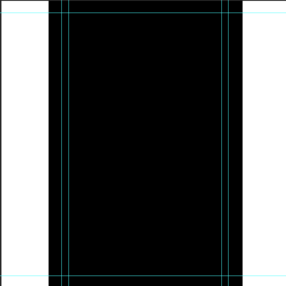
Now you should see a layout someting like this:
[](https://docs.suricoon.com/uploads/images/gallery/2022-10/7R9image.png)
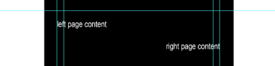
The helper lines are indicating the save area, where you can place your content. If you are creating "left" pages, align your content at the left outer helper line and make sure the content does not overlap the inner right helper line. If you are creating "right" pages its the other way round:
[](https://docs.suricoon.com/uploads/images/gallery/2022-10/Jxmimage.png)
Since the texture we are creating is a text mask, we can only use gray scale colors to create our content. White values will be replaced with the specified text color of our UE4 material. Black values will be transperent. All gray scale values between black and white will be some kind of tranclucent.
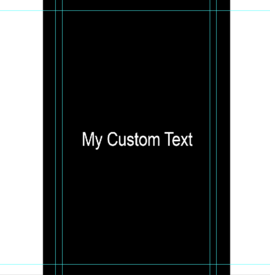
Let's write some pure white text to the center of our page:
[](https://docs.suricoon.com/uploads/images/gallery/2022-10/ylwimage.png)
Now let's export the text mask as PNG.
Click on File->Save As and choose Format: PNG
Name it **T\_My\_Text\_Mask\_M**
Click Save
### 2. Import the text mask to UE4
Open your Unreal 4 project and make sure the "Old Animated Books" pack is installed.
Navigate to the texture folder of your project. (For easier and uncomplicated updating the packs content its recommended use a folder outside of the packs folderstructure to add your custom files)
Click on the import button of the contetn browser

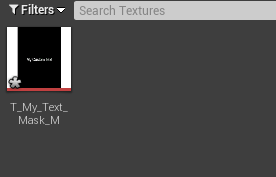
Navigate to your text mask file created earlier and click open.
[](https://docs.suricoon.com/uploads/images/gallery/2022-10/LMhimage.png)
### 3. Create a material instance
In the Content Browser navigate to **OldAnimatedBooks->Materials->Master**
Right click on **M\_Master\_Anim\_Book\_Pages** and choose **Create Material Instance**
[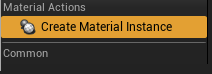](https://docs.suricoon.com/uploads/images/gallery/2022-10/f9Gimage.png)
Name it **MI\_My\_Custom\_Page** or whatever you want
[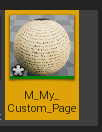](https://docs.suricoon.com/uploads/images/gallery/2022-10/TTuimage.png)
Recommended: Move the newly created material instance to a folder outside of the packs content.
Open **MI\_My\_Custom\_Page**
In the Details panel activate the checkbox **Text**
[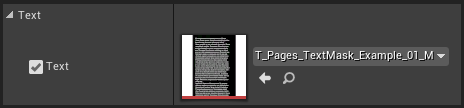](https://docs.suricoon.com/uploads/images/gallery/2022-10/zuximage.png)
Click on the dropdown and type **T\_My\_Text\_Mask\_M**
press enter
[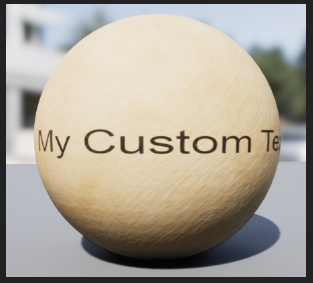](https://docs.suricoon.com/uploads/images/gallery/2022-10/A6simage.png)
### 4. Adjust material parameter
Under the parameter group text you can see the following parameters:
- Text\_Color
- Text\_Intensity (1: Fully Visible, 0: Invisible)
- Text\_Metallic (0: no metallic, 1: fully metallic)
- Text\_Roughness (0: no change, -1 low roughness glossy, 1 high rougness)
The parameters are almost self-explaining. To use a particular parameter we have to activate its checkbox
We want to create some golden letters:
1. Click on Text Color and choose some kind of orange/yellowish color
2. Choose a Text\_Metallic value of 1
3. Choose a Text\_Roughness value of -1
Your text should now look something like this:
[](https://docs.suricoon.com/uploads/images/gallery/2022-10/d11image.png)
### 5. Assigning the custom page
To keep it easy we will now exchange the default material of the skeletal mesh **SK\_Anim\_Book\_01**
I recommend to change the material on the respective actor on your map or to duplicate the skeletal mesh.
In the Content Browser navigate to **OldAnimBooks->SkeletalMeshes**
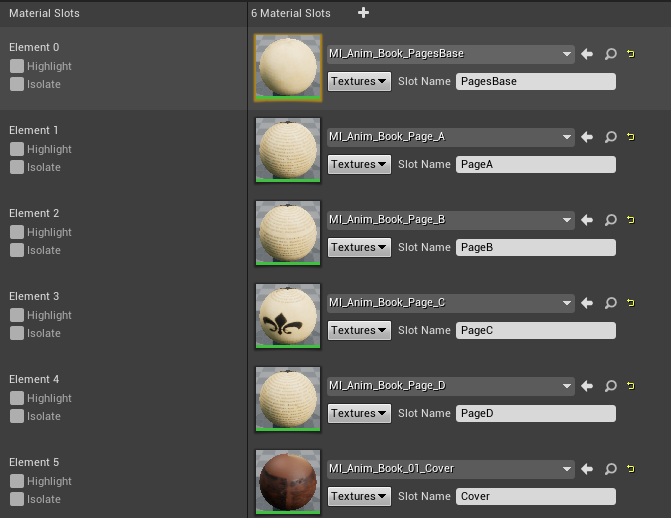
Open **SK\_Anim\_Book\_01** and go to the **"Mesh"** Tab
[](https://docs.suricoon.com/uploads/images/gallery/2022-10/WqIimage.png)
There are 6 materials.
Element 1 to 4 are the page materials
We will assign our custom page to Element 1 (Page A)
Click on the dropdown of Element 1 and type **MI\_My\_Custom\_Page**
Press enter
Done!
We can now preview some opening animations and see what our custom page looks like!
[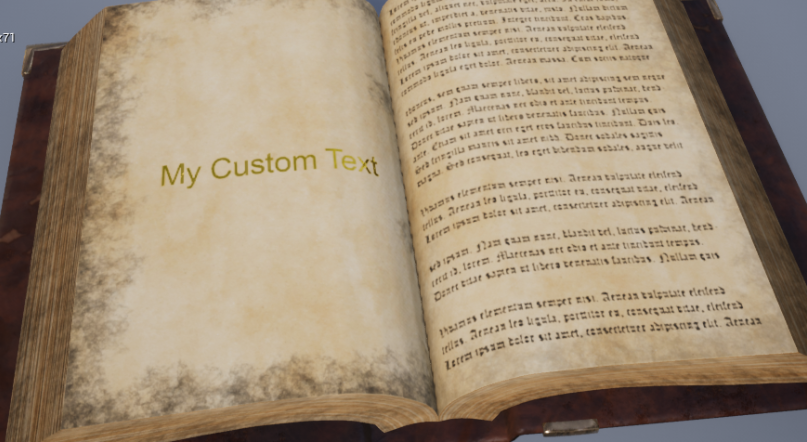](https://docs.suricoon.com/uploads/images/gallery/2022-10/9soimage.png)
P.S: We have just created a "Left" Page
# Interaction with the multi page turn actor
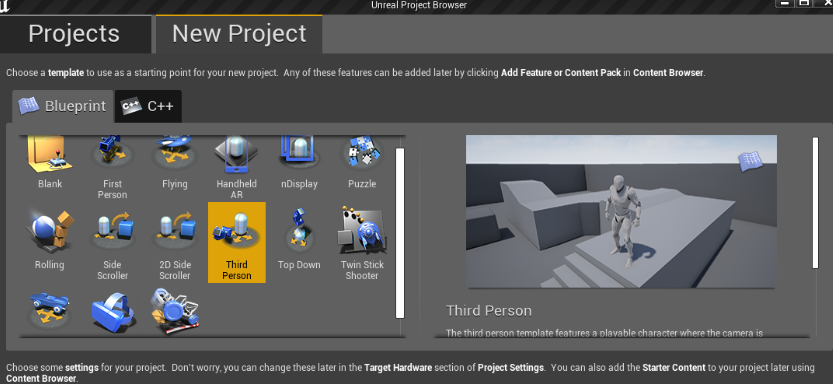
## Create a Third Person Template Project
[](https://docs.suricoon.com/uploads/images/gallery/2022-10/6SBimage.png)
## Add Old Animated Books to your Project
1. Start the Epic Games Launcher
2. Select Unreal Engine
3. Select Library
4. Select Add to Project
5. Select your newly created project
[](https://docs.suricoon.com/uploads/images/gallery/2022-10/g5Timage.png)
## Modify the "BP\_MultipageTurnActor"
You may also duplicate the actor instead of modifying it, but this will require also to duplicate the AnimBluePrint and adjusting all the casts and references. For simplicity we will modify the existing actor:
1. Open the MultipageturnActor
[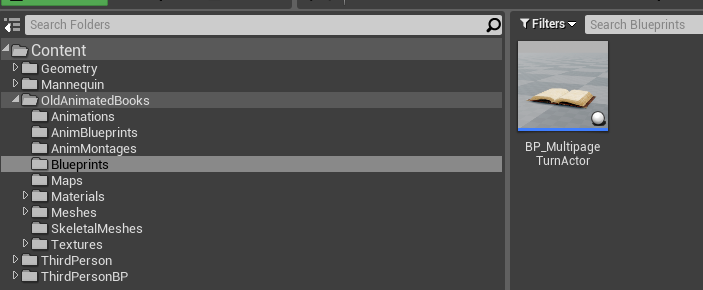](https://docs.suricoon.com/uploads/images/gallery/2022-10/MAhimage.png)
2. Remove the auto page turning logic:
[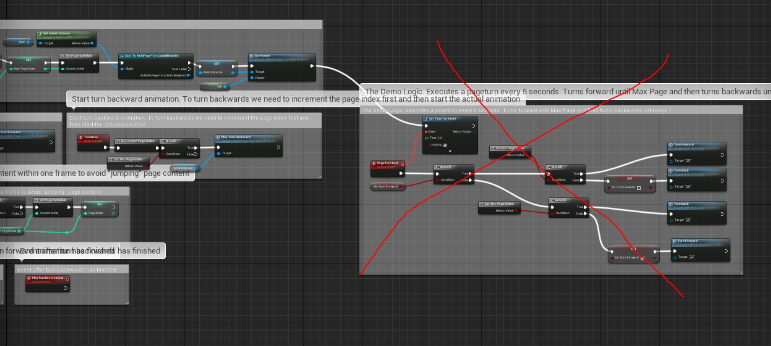](https://docs.suricoon.com/uploads/images/gallery/2022-10/dXlimage.png)
3. Add the following Nodes:
[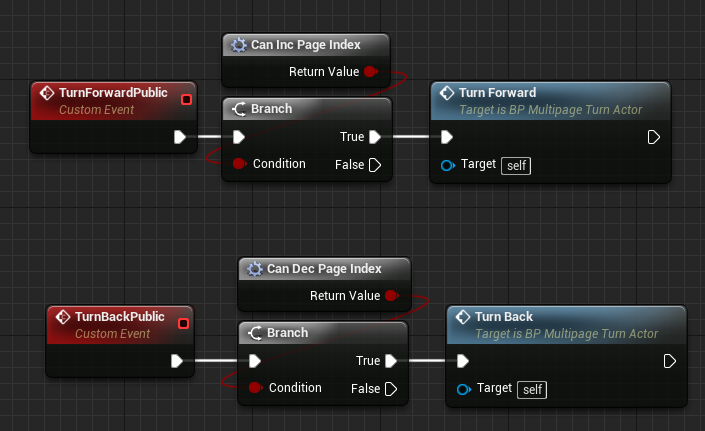](https://docs.suricoon.com/uploads/images/gallery/2022-10/aZoimage.png)
Add Two Custom Events
- TurnForwardPublic for accessing the turn forward logic outside (with our third person character)
- TurnBackPublic for accessing the turn back loogic from outside (with our third person character)
4. Add a camera to the view port of the actor and name it "camera"
[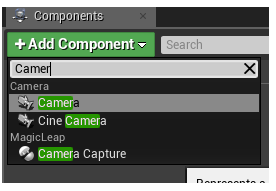](https://docs.suricoon.com/uploads/images/gallery/2022-10/n2Nimage.png)
Place the camera as follows:
[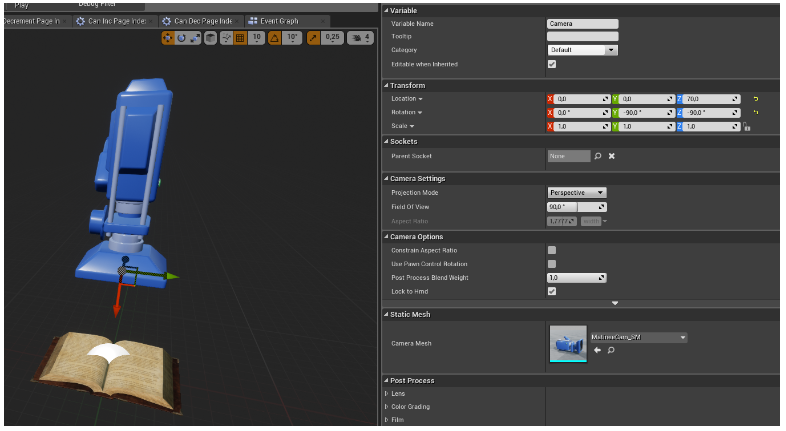](https://docs.suricoon.com/uploads/images/gallery/2022-10/5XYimage.png)
5. Add a Box Collision to the Viewport
[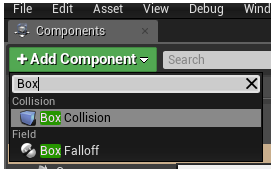](https://docs.suricoon.com/uploads/images/gallery/2022-10/ipRimage.png)
Place the Box collision as follows:
[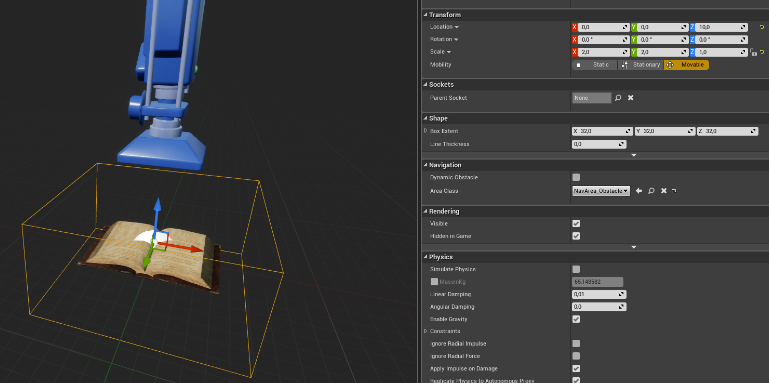](https://docs.suricoon.com/uploads/images/gallery/2022-10/agMimage.png)
6. Save and Compile
## Modify the Third Person Character
[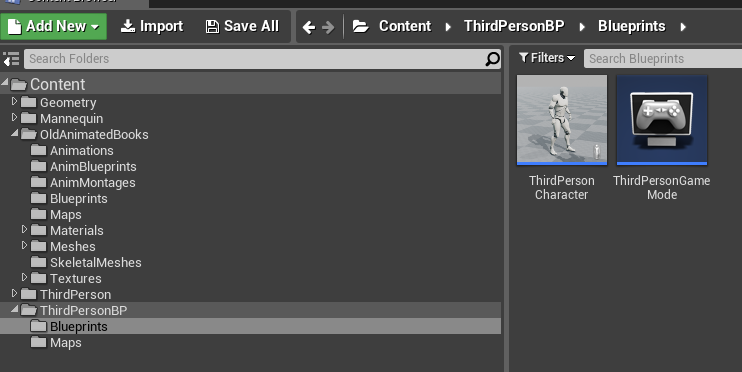](https://docs.suricoon.com/uploads/images/gallery/2022-10/b00image.png)
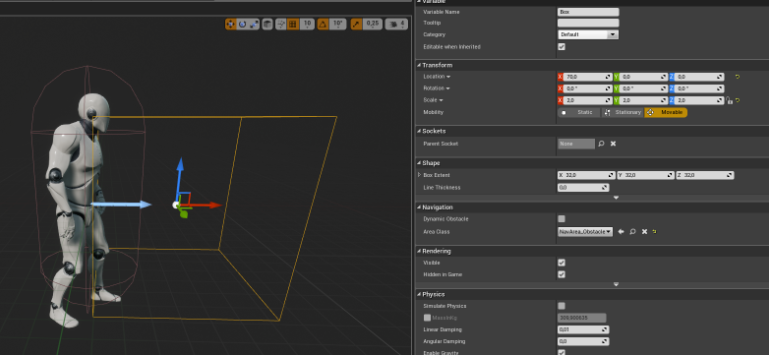
1. Add a Box Component to the Third Person Character:
[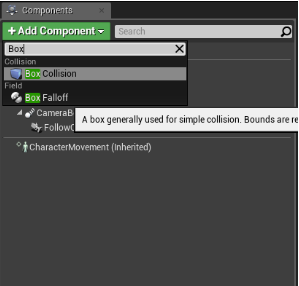](https://docs.suricoon.com/uploads/images/gallery/2022-10/yjNimage.png)
2. Place the Box like this:
[](https://docs.suricoon.com/uploads/images/gallery/2022-10/GGHimage.png)
3. Add Overlapping Events
[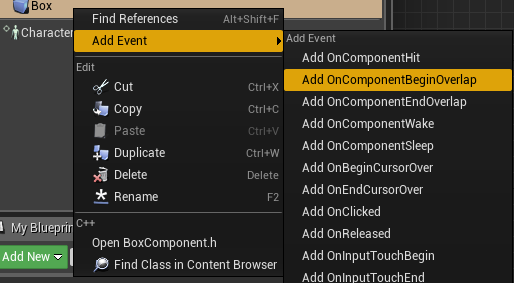](https://docs.suricoon.com/uploads/images/gallery/2022-10/DoSimage.png)
One for Begin Overlap
[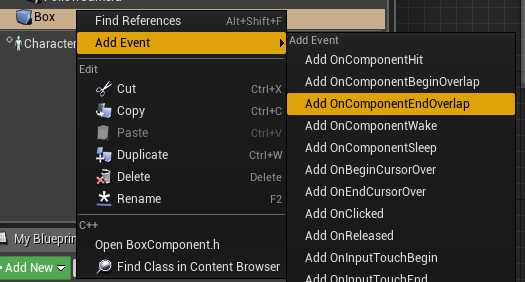](https://docs.suricoon.com/uploads/images/gallery/2022-10/2Guimage.png)
One for End Overlap
4. Create the following overlap logic
[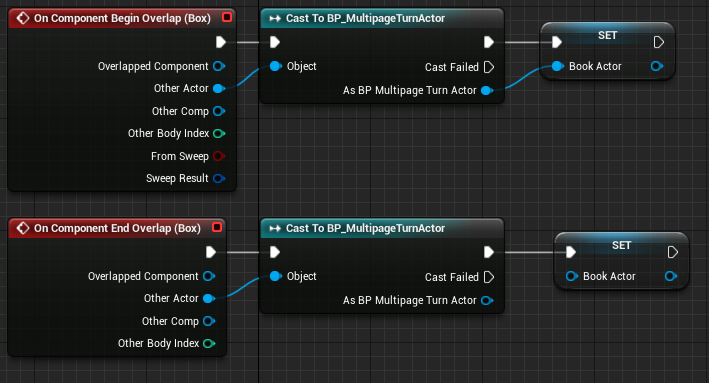](https://docs.suricoon.com/uploads/images/gallery/2022-10/GcYimage.png)
5. We will start Interaction with the book by pressing "E", then we will listen to the inputs of "Z" and "X" to Control the page turning once we are interacting with the book
For the E Key create the following Logic:
[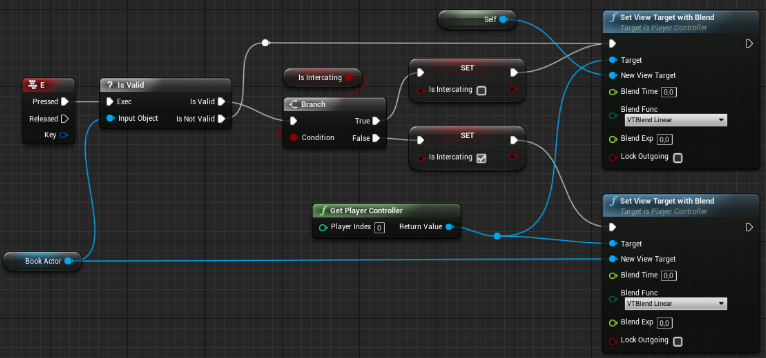](https://docs.suricoon.com/uploads/images/gallery/2022-10/TvSimage.png)
This will handle the interaction and switches the camera when interacting.
For the Z and X Key create the following logic:
[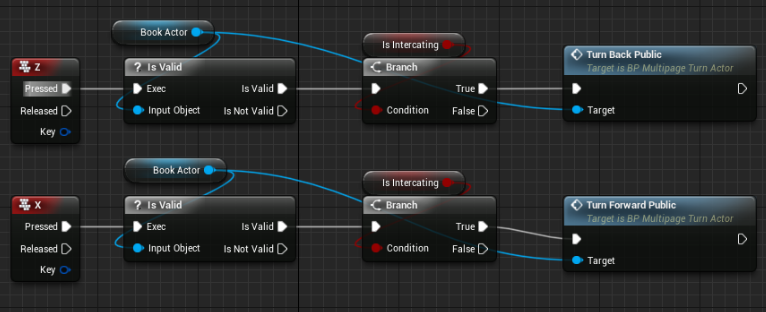](https://docs.suricoon.com/uploads/images/gallery/2022-10/VX5image.png)
6. Compile and Save
## Place the Book and Play Test
Place the BP\_MultipageTurnActor something like this and hit Play
[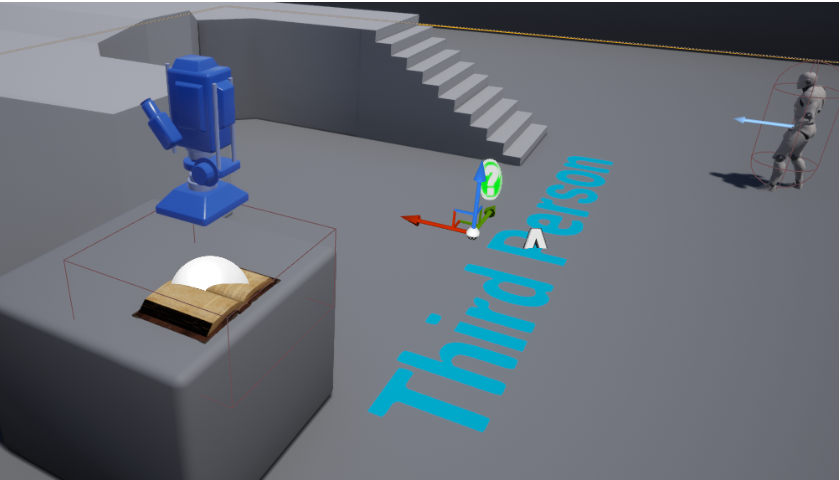](https://docs.suricoon.com/uploads/images/gallery/2022-10/c6Kimage.png)
Result: